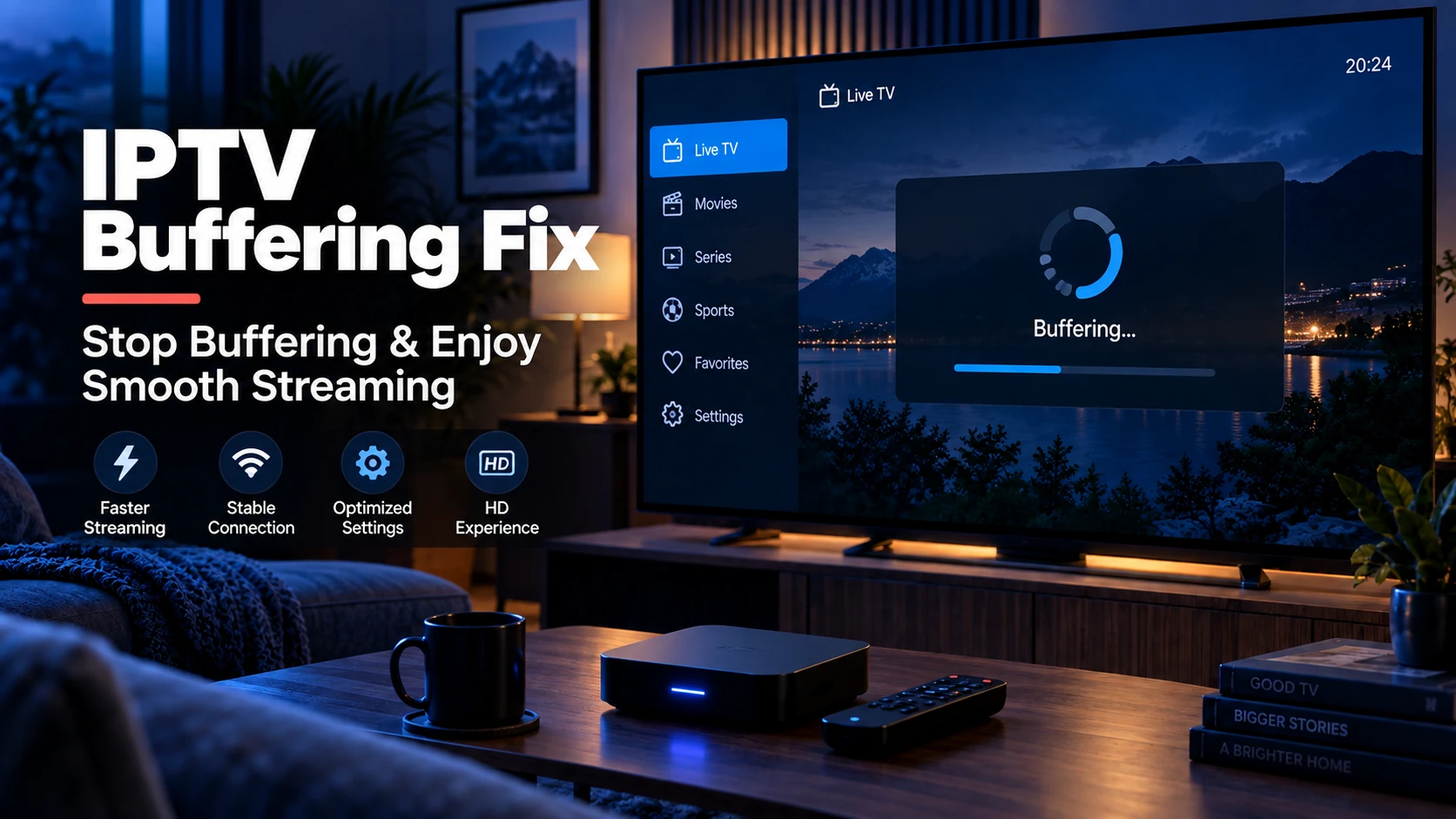
IPTV buffering is a symptom, not a disease. The stream starts, pauses, buffers, resumes, repeats. Behind that behaviour are exactly four kinds of cause: your network, your player, your device, or your provider. Diagnose which one before changing settings — most people waste hours tweaking the player when the real problem is Wi-Fi or a congested provider server.
Quick answer: Wire your TV/box to Ethernet, raise your player's buffer setting, and test at an off-peak time. If it still buffers, it is almost certainly provider-side or ISP throttling.
Diagnose First: Which Category Is It?
Run these three checks in order. They take five minutes and rule out most causes:
- Every channel buffers, or just one? One channel buffering = that stream is the problem (provider). Every channel = network, player, or device.
- Does it buffer at a specific time of day? Evenings/weekends = provider congestion or ISP contention.
- Does it buffer on your TV but not on your phone (on the same Wi-Fi)? If TV buffers and phone is fine, suspect the TV/box's Wi-Fi chip or player settings rather than your broadband.
If you have not already, run your playlist through the Free Trial Checker to confirm the streams themselves are reachable. A stream URL is often the first thing to rule out — it costs nothing and takes 10 seconds.
Keep a short evidence log
Before changing several settings at once, write down the channel, device, connection type, player, time of day and result. Then change only one variable at a time. This turns "it sometimes buffers" into a useful pattern: a single channel points upstream, a single device points local, and an evening-only problem points to contention. It also gives provider support enough detail to investigate rather than asking you to restart everything again.
Fix 1: Your Network
Use Ethernet instead of Wi-Fi
This single change fixes more buffering than any other. IPTV streams at 3–8 Mbps, but Wi-Fi signal fluctuations and interference cause packet loss spikes that players read as buffering.
- Connect your TV, Firestick, or Android box to the router with a CAT5e or CAT6 cable.
- If wiring is impractical, move the device closer to the router or use a powerline adapter.
- For Firesticks, a USB-Ethernet adapter (with the official power supply) is more reliable than Wi-Fi.
Test your actual speed to the streaming server
Speed test sites measure throughput to a local server, which is not where your IPTV provider is. A smooth HD stream needs roughly 25 Mbps downstream sustained and, more importantly, low jitter. A steady 30 Mbps beats a fluctuating 100 Mbps.
Treat that number as a practical starting point rather than a promise. Codec, resolution, frame rate, other people on the connection and the stream's own segment delivery all change the result. HTTP Live Streaming works by delivering small media segments to the player, so a short burst of packet loss or delay can interrupt playback even when a generic speed test looks high. See RFC 8216, the HLS specification for the protocol background.
Router fixes
- Restart the router — cheap, and it clears NAT table exhaustion and DHCP issues that cause intermittent drops.
- Enable QoS — most routers have a Quality of Service setting; prioritise the TV/box MAC address so downloads from other devices do not starve the stream.
- Try the 5 GHz band if your device supports it — it is less congested than 2.4 GHz in apartment buildings.
- Update DNS to a public resolver (1.1.1.1 or 8.8.8.8) — some ISPs do slow DNS-based filtering on known IPTV endpoints.
Slow down other traffic
Large downloads, cloud backups, and game updates crush a stream. Pause them while watching, or use your router's QoS to prioritise the streaming device.
Fix 2: Your Player
If the network is healthy, the player's buffering strategy is the next suspect.
Raise the buffer / network cache
- VLC: Tools → Preferences → Show settings: All → Input/Codecs → raise Network caching (ms) from the default
1000to3000–5000. See the VLC IPTV guide. - IPTV Smarters / TiviMate: settings for "Player" or "Seekable buffer" — set a higher value (e.g. 3–5 seconds) than the default.
- On Android boxes, this offloads buffering from the hardware decoder to the network stack, smoothing jitter.
More buffer trades a slightly longer channel-start delay for tolerance of short network stalls. Do not keep increasing it indefinitely: if every channel fails at the same time, a larger cache hides the issue briefly but cannot repair an unreachable server. VideoLAN documents the network-cache control in its VLC technical reference.
Check the player's decoder
- Try switching the player used for playback. In IPTV Smarters, Apps with an ExoPlayer / VLC toggle — if one buffers, try the other.
- Disable hardware acceleration if you see green/black tearing (older GPU drivers).
- In TiviMate, try Settings → Playback → General and toggle "AFR" (auto frame rate) off — some TVs re-sync and cause pauses.
Prefer lower quality if the playlist offers it
Many playlists list multiple tiers (e.g. 1080p / 720p / 360p). On a marginal connection, 1080p is not worth constant buffering. Some players let you force a max resolution — do that instead of reloading.
Fix 3: Your Device
Older boxes and under-spec TVs struggle with high-bitrate streams even on a fast network:
- Restart the device — Android boxes leak memory over days of use; a reboot clears decoder buffers.
- Free up storage — Firesticks and cheap Android boxes stutter when storage is full (the player can't write its HLS segment cache). Delete unused apps.
- Close background apps — a single background download or misbehaving app steals CPU and network.
- Check for updates — player and box firmware updates routinely fix stream-stutter bugs.
- Iff the device is several years old, budget boxes (Fire TV Stick 4K, Chromecast with Google TV) decode 1080p HLS far more smoothly than the cheapest sticks.
Fix 4: Your Provider
When everything local is healthy and a specific channel (or all channels at peak times) still buffers, the bottleneck is upstream:
- Provider server overload — evenings are peak IPTV hours; servers oversubscribe. Test the same channel at 9 a.m. vs 9 p.m.
- Wrong server / CDN region — many providers let you pick a server or DNS region in their panel. Choose the one geographically nearest you; it directly cuts latency and jitter.
- Geo-restriction of the stream — some channels are region-locked; the provider routes you through a slow tunnel to the source, which buffering reveals.
- Ask support for an alternative URL — providers sometimes offer alternate ports (8080, 2086) or CDN backups that bypass a congested node.
When to consider a VPN
If your ISP throttles IPTV traffic during peak hours (common for some home broadband plans), streaming through a VPN to a different endpoint often smooths playback. Test before buying anything: a free/low-cost VPN trial that performs the feed is proof. Check your provider's terms of service about VPN usage first — some prohibit it.
Fastest-Fix Checklist
| Symptom | First thing to try |
|---|---|
| Every channel buffers | Wired Ethernet; restart router |
| One channel buffers | Provider issue — test at off-peak, request alt URL |
| Buffers on TV only | Device Wi-Fi chip / player buffer setting |
| Buffers at 8–11 pm only | Provider or ISP congestion — test off-peak |
| Green/black artifacts | Disable hardware acceleration |
| Works, then stops after 10 s | Network cache too low; raise buffer |
| Stream starts, pauses, repeats | HLS segment delivery slow — see network fixes |
FAQ
How much internet speed do I need for IPTV?
A sustained 25 Mbps is comfortable for one HD stream; 50+ Mbps if you stream on multiple TVs or the household is heavily used. Speed to the provider matters more than the headline speed test number to a local server.
Why does my IPTV buffer only in the evening?
That is the classic signature of provider server overload or ISP peak-time congestion. Test the same channel at different hours, and if it's consistently evenings, contact the provider or use a VPN to bypass ISP throttling.
Does a VPN fix IPTV buffering?
Only if the cause is ISP throttling or geo-routing. On a healthy connection a VPN adds overhead and can make buffering worse. Test with a trial before committing.
My playlist works in one player but buffers in another — why?
Different players buffer differently (ExoPlayer vs the app's own player vs VLC engine). Raise the buffer setting, or switch to the player that fits your network. The streams themselves are fine — see What Is an IPTV Player?.
Is buffering caused by bad playlist files?
Almost never. The playlist is only a list of URLs. If streams load but stutter, it's network/player/device/provider — inspect the playlist structure with the Free Trial Checker to rule out dead or insecure http:// URLs first.
Next steps: If channels fail to load at all rather than buffer, see IPTV Playlist Not Working. If you are still setting up, start from the beginner IPTV setup guide so buffering issues are avoidable from day one.