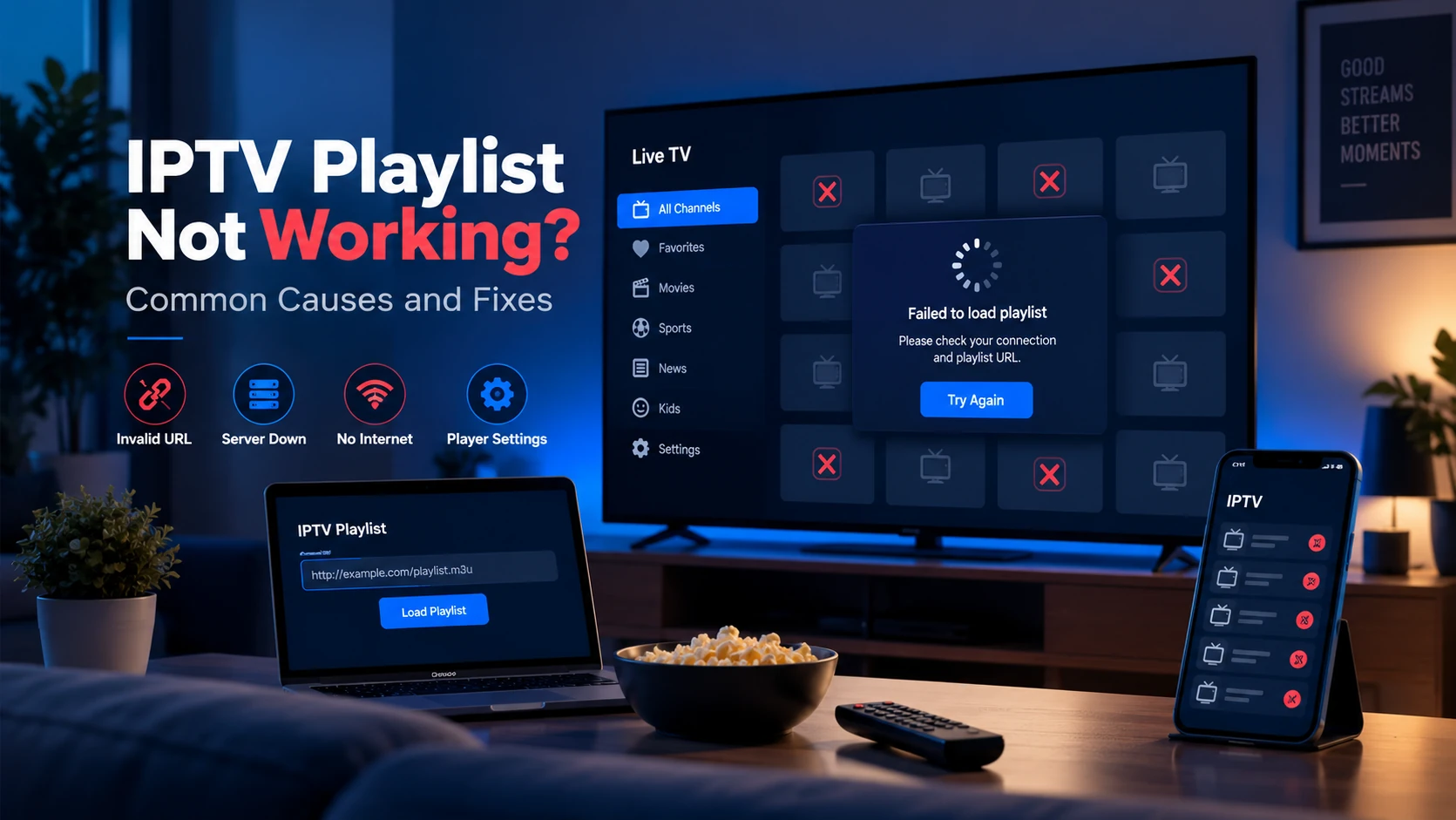
When an IPTV playlist stops working, there are only a handful of real causes. The most common are an expired or changed URL, a missing #EXTM3U header, or streams being blocked by your network. The first thing to check: paste your M3U URL into the IPTV Free Trial Checker — it will tell you immediately whether the file loads, what the header looks like, and whether any streams use insecure http:// that modern devices block.
The seven causes below cover the vast majority of playlist failures. Work through them in order — the most common problems are at the top.
Fast Diagnosis Table
| What you see | Most likely area | First test |
|---|---|---|
| URL opens as an HTML page | Provider login/token issue | Open provider panel and regenerate the M3U URL |
File starts with #EXTM3U, but player shows nothing | Player/parser issue | Test the same URL in VLC |
| Channels appear, but none play | Stream/server/network issue | Open one stream URL directly in VLC |
| Some channels work, others fail | Channel-specific outage or geo-block | Test failed channel on mobile data |
| Channels play, guide blank | EPG/XMLTV issue | Open EPG URL and compare tvg-id values |
| Works on laptop, fails on TV | Device/app/HTTPS/codec issue | Check http:// streams and try another TV player |
This table keeps you from chasing the wrong layer. A playlist can be valid while streams fail, and streams can work while the EPG is blank.
1. Playlist URL Has Expired or Changed
IPTV providers generate M3U URLs that include an access token or session ID in the query string, for example:
https://provider.example/get.php?username=alice&password=s3cr3t&type=m3u_plus
If your subscription lapsed, your provider rotated credentials, or the server was migrated, that URL simply returns a 401, 403, or an empty file — which the player interprets as "no channels."
How to confirm it: Open the URL in a browser. A working playlist returns raw text starting with #EXTM3U. A dead one returns an error page or blank.
What to do: Log into your provider's panel and regenerate your M3U URL. Do not share the new URL publicly — it is tied to your account.
2. Missing or Wrong #EXTM3U Header
Every valid M3U playlist must begin with #EXTM3U on the very first line — no blank lines, no BOM character, nothing before it. Players that enforce this strictly will refuse to load the file entirely.
How to confirm it: Open the raw file in a plain-text editor (Notepad, VS Code) or paste it into the checker tool. If the first line is not exactly #EXTM3U, that is your problem.
What to do: If you downloaded the file and edited it, undo any leading changes. If the file comes from a URL, the provider's server is generating a malformed response — contact them or try the alternative URL format they offer (some providers have both type=m3u and type=m3u_plus endpoints).
3. Player Does Not Support the Format (M3U vs M3U8 Encoding)
M3U and M3U8 are structurally identical — the only difference is encoding. M3U uses ANSI/ISO-8859-1; M3U8 uses UTF-8. Some older or stripped-down players only accept one and silently fail on the other.
Additionally, a player expecting a .m3u8 HLS manifest at a channel level may choke if the playlist itself is served with the wrong Content-Type header (e.g., text/plain instead of application/x-mpegURL).
How to confirm it: Try loading the same playlist URL in a different player — VLC on a PC is the most permissive option. If it works in VLC but not on your Firestick app or Smart TV, the issue is player-side format support, not the playlist itself.
What to do: Check if your provider offers both a .m3u and .m3u8 download link and try switching. In most players there is also an option to manually set the stream type — look for "HLS," "M3U8," or "Auto" in the player's playlist settings.
4. Streams Use HTTP Instead of HTTPS (Blocked on Modern Devices)
Modern browsers, Smart TVs (Tizen, webOS), Android TV, and iOS enforce mixed-content blocking: if the app itself is loaded over HTTPS, it will refuse to fetch resources over plain http://. Many older IPTV providers still deliver streams on port 80 without TLS.
How to confirm it: Paste your playlist into the checker — it flags all http:// stream URLs. You can also scan the raw file with a text search for http:// (not https://).
What to do: Ask your provider for an HTTPS-enabled playlist URL. This is a server-side change they need to make — you cannot fix it by editing the URL from http to https yourself, because the stream server must actually be listening on TLS.
5. Wrong Credentials in the URL
Many M3U URLs embed a username and password directly in the query string. A single mistyped character — a capital letter where there should be lowercase, a 0 vs an O — causes authentication failure at the provider's server, which typically returns an empty playlist or a generic error page.
How to confirm it: Copy the URL from your provider's dashboard rather than retyping it. If the URL was sent in an email, watch for smart-quote substitutions (" instead of ") that some email clients insert automatically.
What to do: Log into your provider account, navigate to your subscription details, and copy the M3U URL fresh. Paste it directly into your player without modifying it.
6. ISP or Network Blocking Streams
Some internet service providers, particularly in Europe and Australia, apply deep-packet inspection or DNS-level blocking to known IPTV stream endpoints. The playlist file itself loads fine, but individual streams time out or return nothing.
How to confirm it: Check whether streams load on a mobile data connection (4G/5G) but not on your home broadband. If they do, your ISP is the variable.
What to do:
- Try changing your DNS to a public resolver (1.1.1.1 or 8.8.8.8) — some ISP blocks are DNS-only.
- If DNS change does not help, the blocking is happening at the packet level. A VPN routed to a different country will typically bypass this, but check your provider's terms of service before using one.
- Some IPTV providers offer stream URLs on non-standard ports (e.g., 8080, 2086) that are less commonly targeted — ask your provider if an alternative port URL is available.
7. EPG Not Loading (Separate from Stream Loading)
The EPG (Electronic Programme Guide) is fetched from a separate XMLTV URL — it is completely independent of the stream playlist. Channels can work perfectly while the guide shows "No information available" or is blank.
Common EPG failure causes:
- Wrong XMLTV URL — the EPG URL is separate from the M3U URL; double-check what your provider gave you.
tvg-idmismatch — each#EXTINFline has atvg-idattribute that must match a<channel id="…">value in the XMLTV file exactly (case-sensitive). A single character difference means no guide data for that channel.- Timezone mismatch — some players need you to set the EPG timezone offset to match your local time.
- EPG URL requires authentication — like the M3U URL, it may contain credentials that expire.
The EPG is unrelated to whether streams actually play. If your channels load but the guide is empty, this is an EPG configuration issue, not a playlist problem. Read more about how IPTV playlists work including the EPG linkage.
What Not to Do
- Do not edit a private M3U URL by hand unless your provider explicitly tells you to.
- Do not paste private provider URLs into random public validators.
- Do not assume a VPN fixes every problem; it only helps if routing, geo-blocking or ISP filtering is the issue.
- Do not delete an app profile before trying playlist refresh and EPG refresh separately.
- Do not blame EPG settings when the playlist URL itself returns an error page.
The goal is to isolate the failing layer before making changes.
How to Diagnose Your Playlist
The fastest path to a diagnosis is to run your M3U URL through the IPTV Free Trial Checker. It checks:
- Whether the file fetches successfully and returns a valid response
- Whether
#EXTM3Uis present and on the correct first line - Total channel count and group breakdown
- Percentage of streams using
http://vshttps:// - Duplicate stream URLs
- Missing
tvg-logoortvg-idattributes
Beyond the checker, a structured diagnostic flow:
- Open the raw URL in a browser — confirms whether the server is responding at all.
- Check in VLC on a desktop — VLC's permissive parser isolates whether the issue is the playlist format or the player.
- Test on mobile data — isolates ISP/network blocking from playlist content issues.
- Search the raw file for
http://— counts insecure streams in seconds. - Check one stream URL directly — paste a single stream URL from the playlist into VLC (Media → Open Network Stream). A black screen suggests a codec issue; an immediate error suggests a server or credential problem.
For further help with specific player setup, see IPTV Troubleshooting.
Sources and Related Guides
- What Is an IPTV Playlist? — explains the M3U structure and private-token safety.
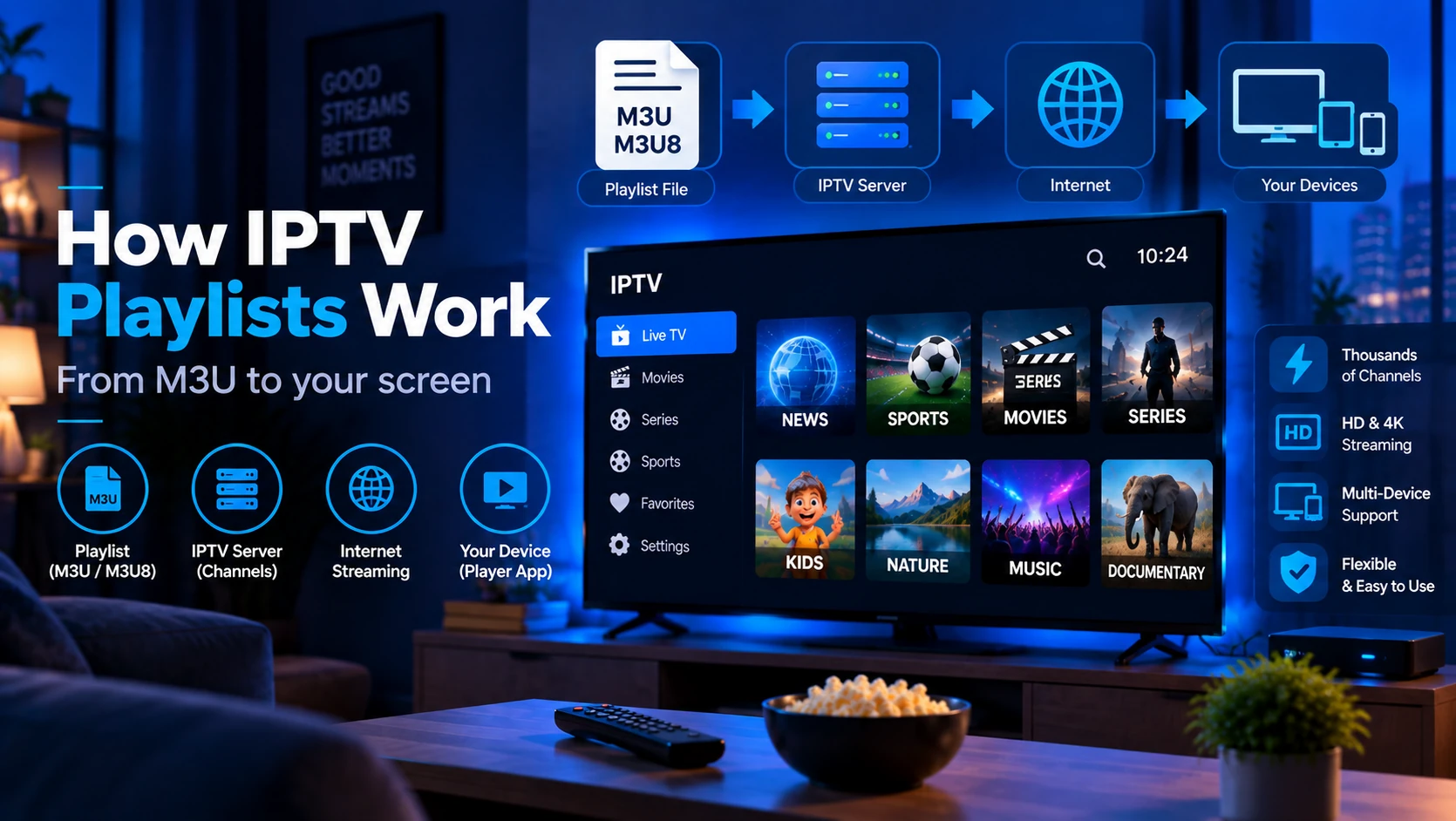
- How IPTV Playlists Work — explains playlist fetching, HLS segments and EPG linkage.
- What Is an EPG? — explains XMLTV and
tvg-idmatching. - How to Use VLC with an IPTV Playlist — useful baseline test for individual streams.
Frequently Asked Questions
For a complete breakdown of what an M3U file contains and how players read it, see What Is an IPTV Playlist? and How IPTV Playlists Work. To test a playlist before committing to a subscription, use the Free Trial Checker.