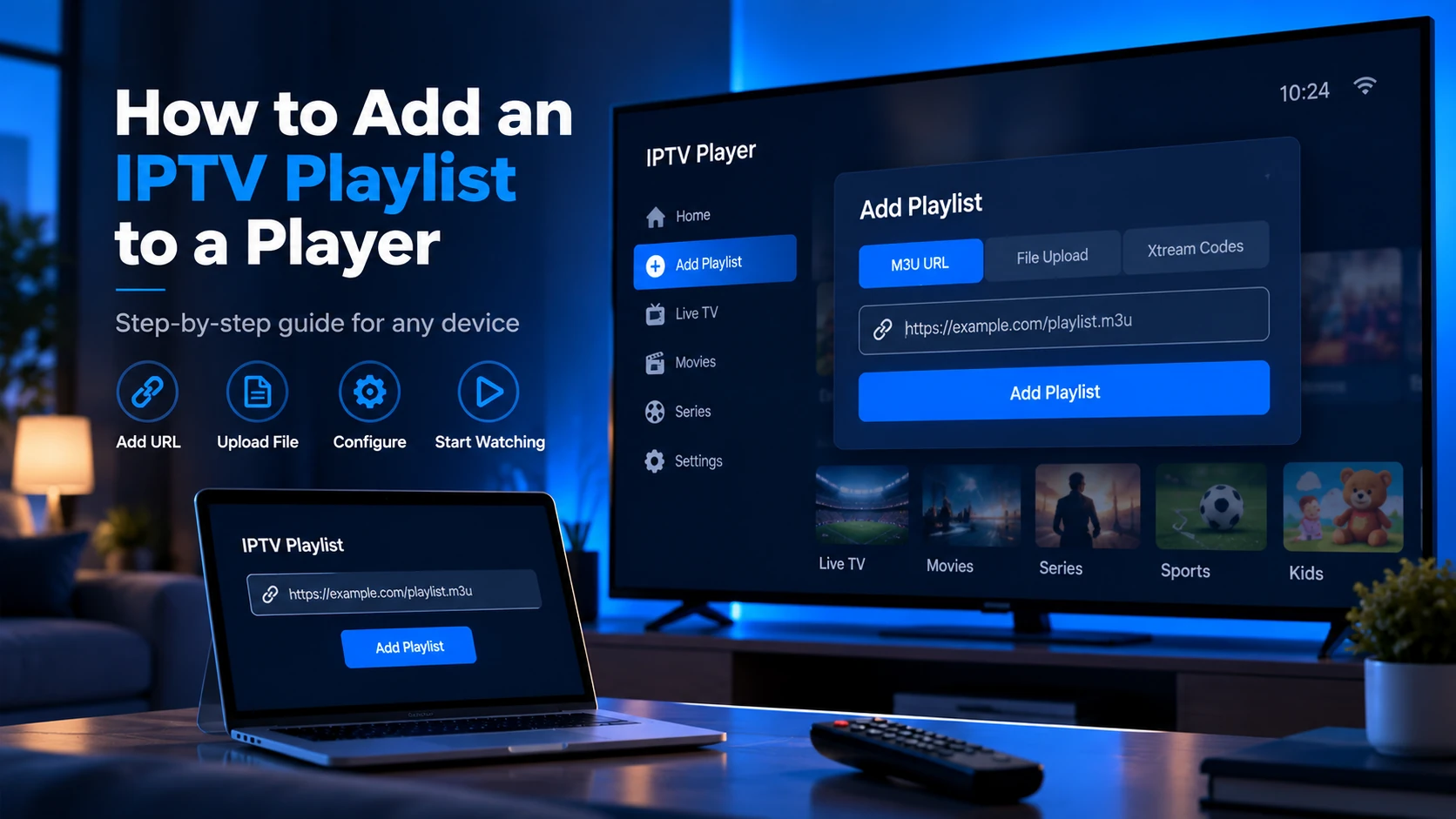
Adding an IPTV playlist to a player requires two things: your M3U URL (from your provider) and a compatible player app installed on your device. The process takes under two minutes in any modern IPTV player. The steps below cover the most widely used apps.
What You Need Before You Start
- Your M3U URL — a link that looks like
https://provider.example/get.php?username=you&password=xxx&type=m3u_plus. Your provider sends this in a welcome email or account dashboard. - A compatible player — VLC, TiviMate, IPTV Smarters Pro, or Smart IPTV depending on your device.
- Internet connection — the player fetches the playlist and streams over your network.
If you have a downloaded .m3u or .m3u8 file rather than a URL, the steps are the same — just use "open file" instead of "open URL" where noted.
Before loading into a live player, run your M3U URL through the IPTV Free Trial Checker to confirm the playlist parses correctly and check for missing headers or insecure stream URLs.
Choose the Right Input Field
Most setup failures happen because the right value goes into the wrong field:
| You have | Put it in | Do not put it in |
|---|---|---|
| M3U URL | Playlist / M3U URL field | Xtream server field |
| Xtream server + username + password | Xtream Codes/API login | M3U URL field |
| XMLTV/EPG URL | EPG / TV guide field | Playlist field |
Downloaded .m3u file | Open file / upload file | Network URL field |
If your provider message includes get.php?username=...&password=...&type=m3u_plus, it is normally an M3U URL. If it gives three separate values — server, username, password — use the Xtream login option.
How to Add a Playlist in VLC
VLC is available for Windows, macOS, Linux, Android, and iOS.
- Open VLC.
- Go to Media → Open Network Stream (Windows/Linux) or File → Open Network… (macOS).
- Paste your M3U URL into the URL field.
- Click Play.
VLC loads the playlist and starts playing the first stream. To browse channels, open the Playlist panel: View → Playlist (or press Ctrl+L on Windows).
For a downloaded file: Media → Open File → select your .m3u or .m3u8 file.
VLC does not include a full EPG guide. It is best for quick testing and desktop viewing. For a living-room EPG experience on Android TV or Firestick, TiviMate or IPTV Smarters are more suitable.
How to Add a Playlist in TiviMate
TiviMate runs on Android TV and Firestick. The free version supports one playlist; TiviMate Premium unlocks multiple playlists and EPG features.
- Open TiviMate.
- On first launch, tap Add playlist on the welcome screen. If already set up: Settings → Playlists → Add playlist.
- Choose M3U playlist.
- Select Enter URL, paste your M3U URL, then tap Next.
- Give the playlist a name (e.g. your provider's name) and tap Add.
TiviMate downloads the playlist and builds the channel list. To add EPG:
- Go to Settings → EPG sources → Add EPG source.
- Paste your provider's XMLTV URL.
- Tap Save.
After adding the playlist, test one channel before arranging favourites. If no channels appear, check whether the playlist URL opens in a browser and starts with #EXTM3U.
How to Add a Playlist in IPTV Smarters Pro
IPTV Smarters Pro is available on Android, iOS, Android TV, and Firestick.
- Open IPTV Smarters Pro.
- On the home screen, tap Add New User.
- Select Load Your Playlist or File/URL.
- Enter a name for the playlist (e.g. your provider).
- Paste your M3U URL into the Playlist URL field.
- (Optional) Paste your XMLTV URL into the EPG URL field.
- Tap Add User.
The app downloads the playlist and displays your channel categories. If your provider uses Xtream Codes API credentials instead of an M3U URL, select Xtream Codes API on step 3 and enter your server, username, and password.
If login fails, check the portal/server URL format first. Some providers expect the full http://host:port value; others document only host:port. Copy the exact format from the provider panel before trying variants.
How to Add a Playlist on a Smart TV
Smart TVs (Samsung Tizen, LG webOS) do not run TiviMate or IPTV Smarters natively. The most compatible option is Smart IPTV (SIPTV), available from the TV's app store.
- Install Smart IPTV from your TV's app store.
- Note the MAC address displayed on screen (format:
XX:XX:XX:XX:XX:XX). - On a computer, go to siptv.eu and enter your MAC address.
- Paste your M3U URL into the playlist field and save.
- Restart the Smart IPTV app on your TV.
The playlist is loaded remotely via the MAC-to-URL mapping. This approach does not require typing a URL on the TV keyboard.
First-Run Test After Adding a Playlist
Once the player imports channels:
- Open one channel in a common category such as News.
- Wait 30-60 seconds to check for immediate freezing.
- Switch to another category.
- Add the EPG URL and refresh the guide.
- Restart the app and confirm the playlist still appears.
Do this before you spend time building favourites. If the profile fails after restart, the app may not have saved the URL correctly.
What to Do If the Playlist Does Not Load
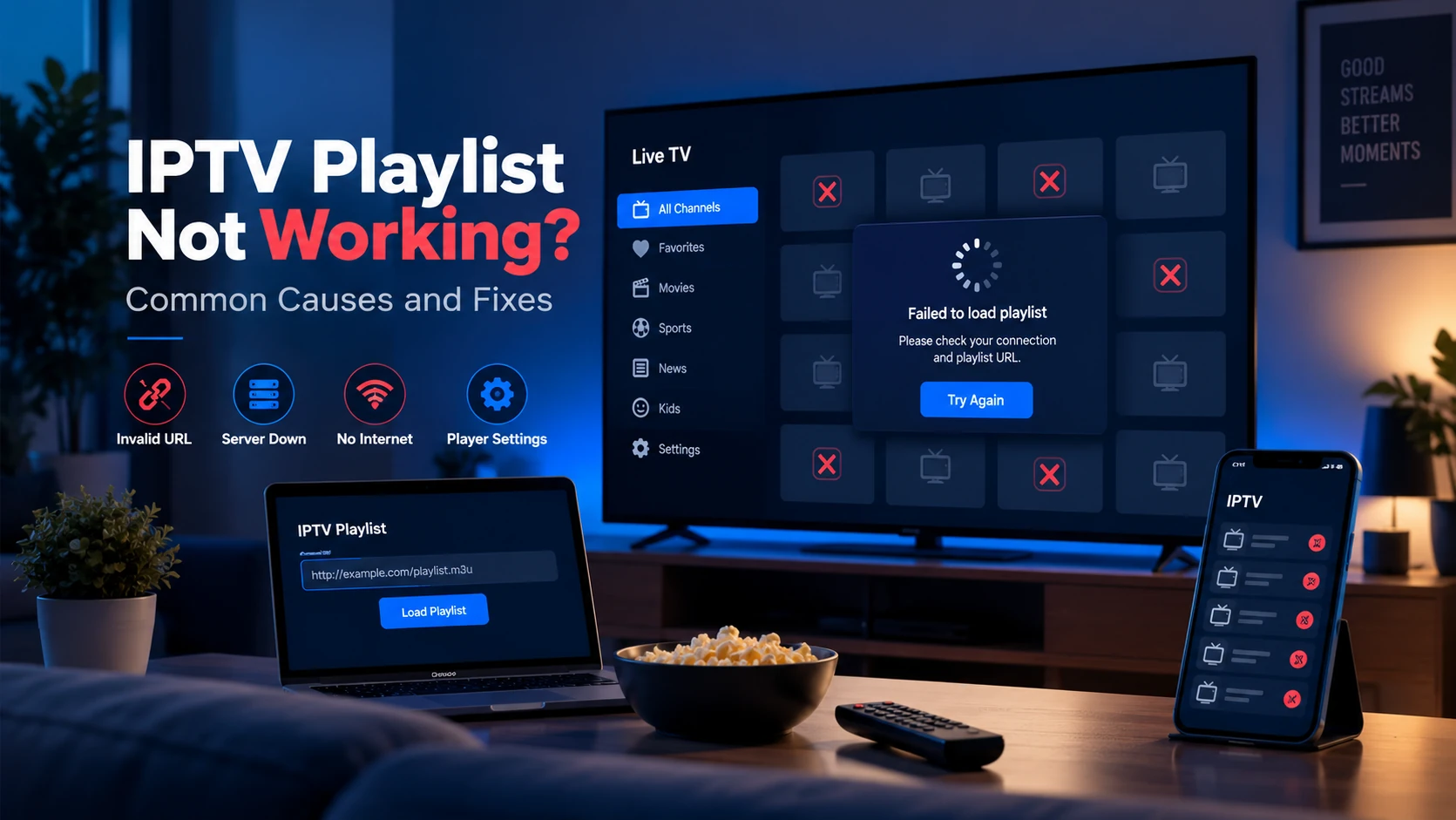
If you add the URL and the player shows an error or empty channel list:
- Check the URL — copy it into a browser and confirm it returns a text file starting with
#EXTM3U, not an HTML login page. - Check your credentials — if the URL contains
username=andpassword=, confirm they are correct and the trial has not expired. - Try a different player — some players are stricter about encoding or
Content-Typeheaders. If VLC loads the list but TiviMate does not, check the player's URL settings for an "allow insecure" or "force UTF-8" option. - Run the checker — paste the URL into the Free Trial Checker to get a detailed error report.
- Check the EPG separately — a blank guide does not always mean the playlist failed. Test the XMLTV URL on its own.
- Watch for spaces — copied credentials often include a trailing space, especially on TV keyboards.
Full troubleshooting steps are in IPTV Playlist Not Working.
Sources and Related Guides
- What Is an IPTV Playlist? — explains the M3U fields you are importing.
- What Is an EPG? — explains XMLTV guide URLs and
tvg-id. - How to Use VLC with an IPTV Playlist — quickest desktop test before TV setup.
- IPTV Smarters Pro Setup — dedicated Xtream/M3U walkthrough.
When to Remove and Re-Add a Playlist
Do not delete the profile for every small issue. Use this order:
| Situation | Best action |
|---|---|
| New channels missing | Refresh playlist first |
| EPG blank | Refresh EPG, not playlist |
| URL changed by provider | Edit playlist URL or re-add profile |
| App saved wrong credentials | Delete and re-add |
| Old cache keeps returning | Clear app cache; clear data only as a last step |
Deleting a profile can remove favourites, groups and guide settings. Refresh first, delete only when the saved login itself is wrong.
FAQ
Can I add the same playlist to multiple players?
Yes. An M3U URL is just a link. You can paste it into as many players as you like. Whether your provider allows simultaneous streams on one account depends on their subscription terms.
Do I need to re-add the playlist after updating it?
No. Players fetch the playlist fresh each time they start (or on a configured refresh interval). If your provider updates the stream URLs, the next playlist fetch will pick up the changes automatically — you do not need to remove and re-add the playlist.
What is the difference between an M3U URL and Xtream Codes?
An M3U URL returns a plain-text playlist file. Xtream Codes is an API that lets players fetch channels, VOD, and series separately and supports features like catch-up TV. Both are ways to access IPTV content — which one your provider offers is in their account dashboard.
Can I use a downloaded .m3u file instead of a URL?
Yes. In every player, there is an "open file" option alongside "open URL". Download the .m3u or .m3u8 file from your provider, save it to your device, and use the file import option. The main drawback is that a downloaded file does not auto-update — you have to re-download manually when the provider updates stream URLs.
Should I add the EPG before or after the playlist?
Add the playlist first so the player has channels to match. Then add the EPG/XMLTV URL and refresh the guide.
Why does the playlist work in VLC but not my TV app?
VLC is more permissive than many TV apps. If VLC works, check the TV app's login type, HTTPS support, playlist size, and codec/device limits.
Next steps: Learn how the playlist works under the hood in How Do IPTV Playlists Work?, or see player-specific guides in the IPTV Players section.