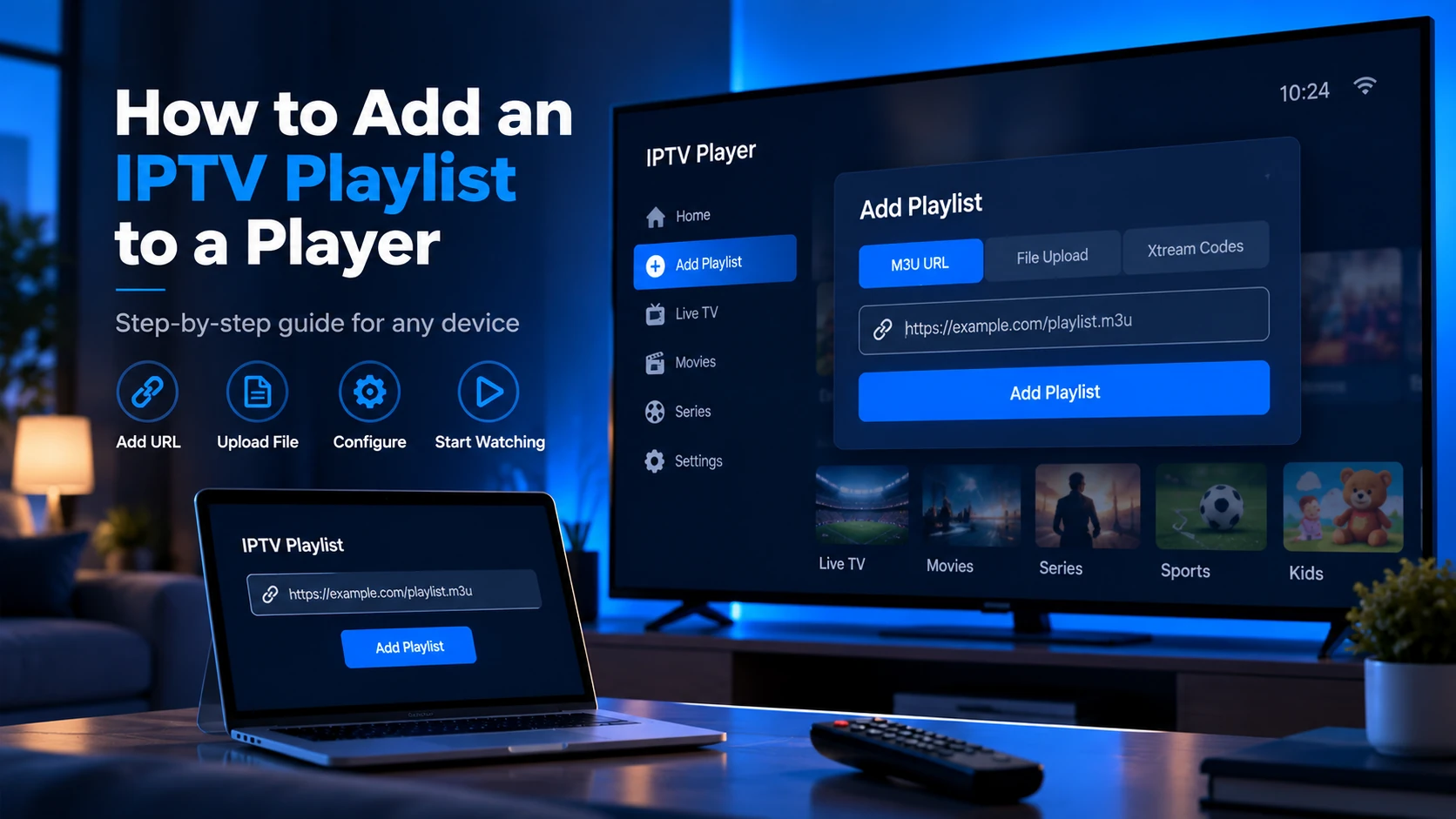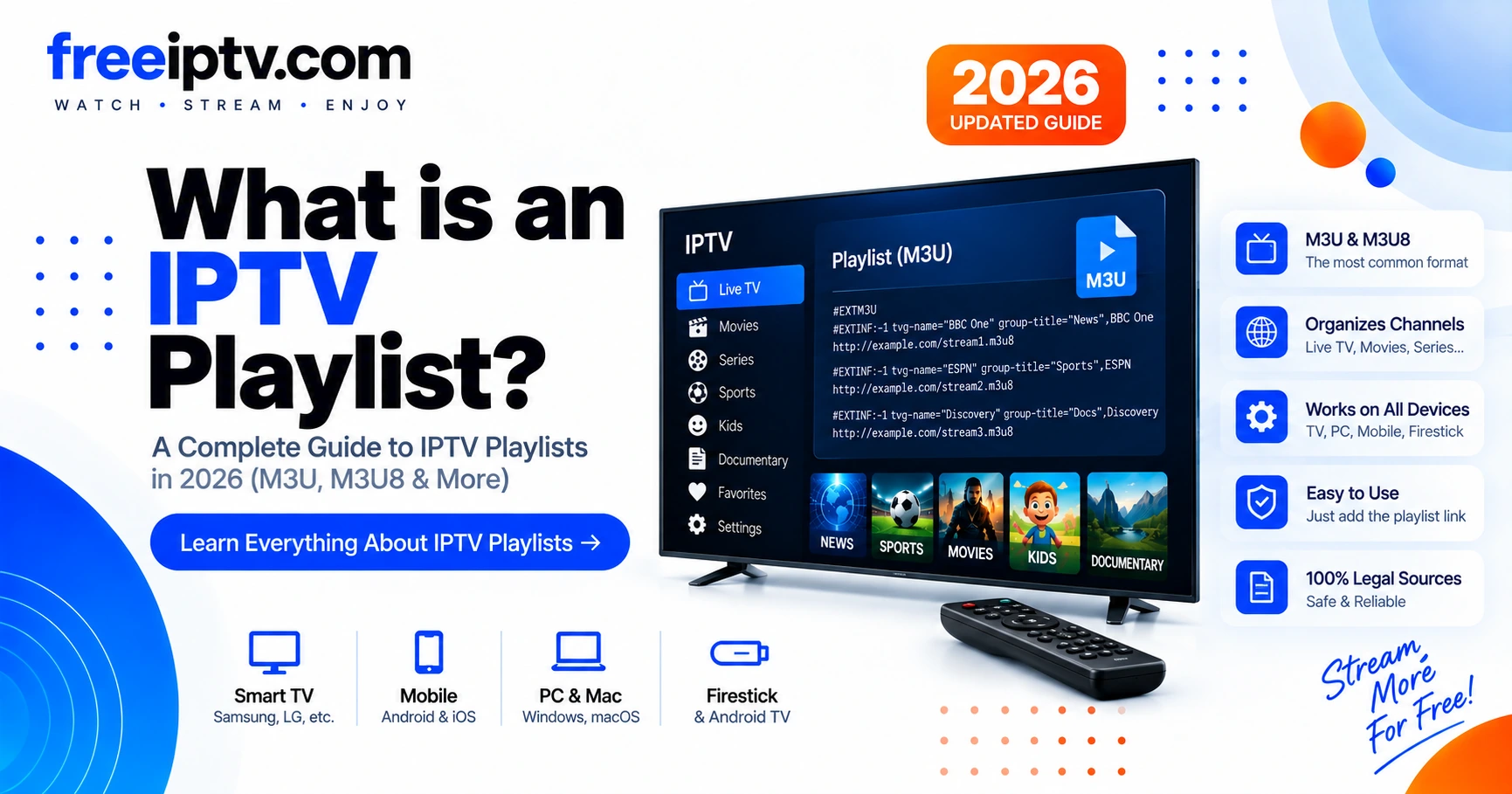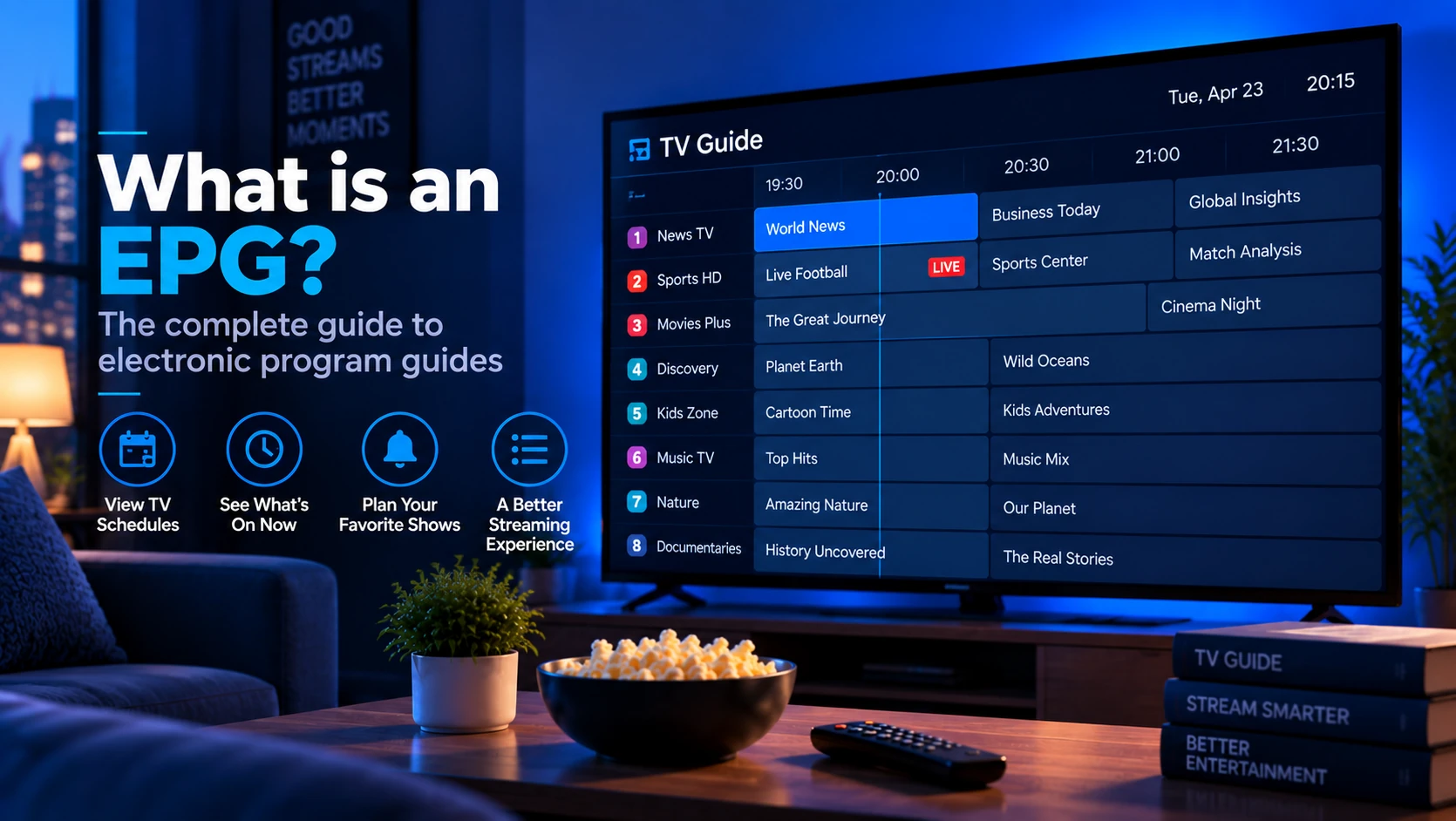
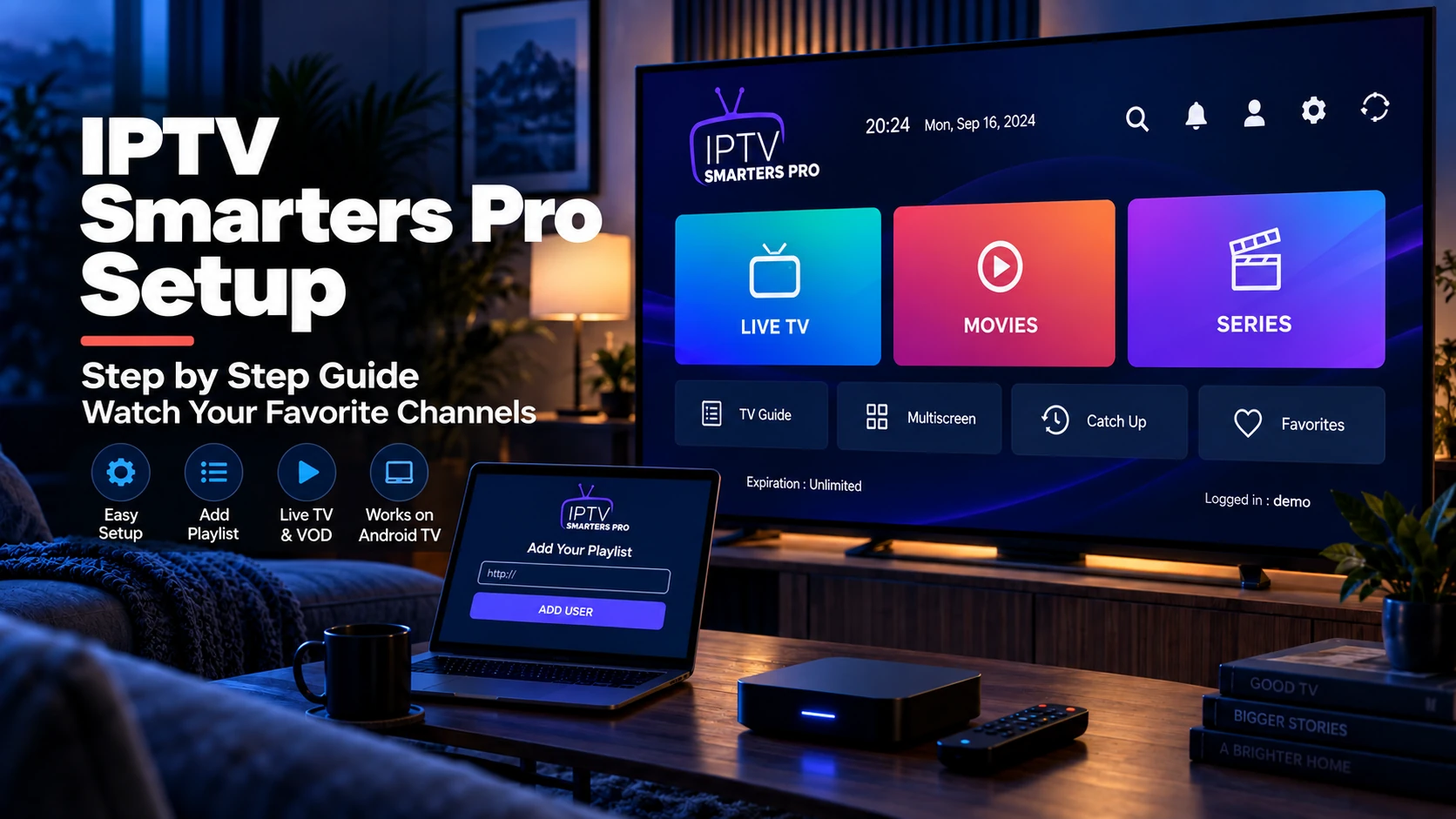
IPTV Smarters Pro logs in with either an Xtream Codes portal or a plain M3U URL. Install the app, choose the login type that matches what your provider sent you, enter the details, and the app pulls live channels, a TV guide, movies and series into one interface. It runs on Android TV, Firestick, iOS, and Windows.
Quick answer: Open the app → tap Add New User → pick Xtream Codes API (if you have portal URL + username + password) or M3U URL / Load Playlist (if you only have a
.m3ulink) → enter your EPG URL when prompted → Add User. Your channel list loads in a few seconds.
What You Need
- IPTV Smarters Pro installed on your device.
- Your provider's login details, in one of two formats:
- Xtream Codes — a portal/server URL plus a username and password. This is the format most paid providers use.
- M3U URL — a single link ending in
.m3uorget.php?type=m3u_plus. This is what a free trial often looks like.
- Optional EPG URL — the XMLTV link for programme listings. Unfamiliar with it? Read What Is an EPG?.
Protect your login before you start
An M3U URL or Xtream login can contain an account token or password. Treat it like a password: do not paste it into screenshots, public forums or a random "playlist checker." Use the original provider message or customer panel, and remove the profile from a shared device before giving that device away. This site's Free Trial Checker analyzes playlist structure in your browser; it does not turn an unknown provider into a trusted one.
Option A: Log In with Xtream Codes
This is the smoothest path when your provider supplied a portal.
- Launch IPTV Smarters Pro.
- On the login screen, choose Login with Xtream Codes API.
- Fill in the three fields exactly as your provider wrote them:
- Name — any label, e.g. My Provider.
- Username — your account username.
- Password — your account password.
- In Portal URL (sometimes called Server Address), paste the address without
http://orhttps://and without a trailing slash, unless your provider's instructions explicitly include it. A correctly formed portal looks likehost.example.com:8080. - Tap Add User. The app authenticates and downloads your content.
Tip: If login fails, the portal URL format is the culprit nine times out of ten. Try the variant with
http://and the variant without — providers are inconsistent about which they expect.
Xtream Codes field checklist
Before you press Add User, check each field:
| Field | Correct example | Common mistake |
|---|---|---|
| Any name | Trial 1 or Living Room | Using your password as the profile name |
| Username | user12345 | Copying a space before or after the username |
| Password | AbC123... | Typing it manually instead of copy-pasting |
| Portal/server URL | http://host.example.com:8080 or host.example.com:8080 | Mixing the portal URL with the M3U playlist URL |
If your provider message includes a long link with get.php?username=...&password=...&type=m3u_plus, that is an M3U URL, not the portal URL field. Use the M3U option instead, or ask the provider for the server URL, username and password separately.
Option B: Log In with an M3U URL or File
- On the login screen, choose M3U URL (or Load Your Playlist or File/URL).
- Give the profile a name.
- Paste the M3U URL into the playlist field. If you have a downloaded file, use the Upload file option instead.
- If the app offers an EPG URL field, paste your XMLTV link; otherwise add it later in Settings → EPG.
- Tap Add User.
The app parses the playlist and lists channels grouped by their group-title attribute — the same grouping used inside the file itself, explained in What Is an IPTV Playlist?.
M3U URL vs file upload
Use the URL option when possible. It lets the app refresh the playlist when your provider updates channels, logos, groups or stream addresses. File upload is useful for a one-time test, but it can become stale because the app only has the copy you imported.
If the M3U URL does not load:
- Paste it into a browser.
- Confirm the first line starts with
#EXTM3U. - If you see an HTML login page, expired-token message or error text, Smarters is not receiving a playlist.
- Test the same URL in VLC to separate playlist failure from app failure.
For a deeper format explanation, use What Is an IPTV Playlist? and M3U vs M3U8.
Which Login Method Should You Choose?
| You have | Choose | Why |
|---|---|---|
| Server URL + username + password | Xtream Codes API | Usually separates Live TV, VOD and series cleanly |
One long .m3u or get.php link | M3U URL | Most portable and easy to test in VLC |
| Downloaded playlist file | File upload | Useful for offline inspection, but not ideal long-term |
| EPG/XMLTV link only | Neither by itself | EPG is guide data, not a channel playlist |
Neither login method makes the source more legal, more stable, or faster by itself. The login method only changes how the app receives the playlist and guide data.
The App's Five Screens
Once logged in, Smarters Pro splits content into tabs. Knowing them removes most "where did my channels go?" confusion:
| Screen | What lives there |
|---|---|
| Live TV | Your channels, with a TV guide, categories and favourites. |
| Movies (VOD) | On-demand films if your provider supplies them. |
| Series | Box-set style episodes, where offered. |
| Catch-up | Recently aired programmes, if the provider supports timeshift. |
| Settings | EPG refresh, playback, parental controls, and a built-in M3U-to-local converter. |
Add or Refresh the EPG
If you skipped the EPG URL at login:
- Go to Settings → EPG.
- Paste your XMLTV URL, or choose one of the built-in free sources.
- Set EPG update interval to something like 12 hours, then run Update EPG.
A full guide can take a few minutes on first sync. An empty guide after a successful update almost always means your playlist's tvg-id values don't match the guide data — see What Is an EPG? for the matching rule.
Smarters EPG not showing?
Check this order:
- Confirm the EPG/XMLTV URL opens in a browser.
- Run Update EPG manually after adding the URL.
- Restart the app after the first full EPG sync.
- Check whether only some channels are blank or all channels are blank.
- If only some are blank, the playlist
tvg-idvalues probably do not match the XMLTV channel IDs.
If Live TV plays but the guide is empty, do not delete the whole profile immediately. The playlist may be fine; the guide feed or ID mapping may be the only broken part.
Device-Specific Notes
Firestick / Fire TV
On Firestick, pay attention to storage and remote navigation. Older Fire TV devices can struggle with very large playlists, heavy EPG files, or apps that keep too much cached data. If Smarters opens slowly, clear cache first; do not clear data unless you are ready to re-enter your login.
Android TV / Google TV
Android TV is usually the smoothest Smarters setup because the app style fits a remote-control interface. If your provider gave both M3U and Xtream details, test Xtream first because Live TV, VOD and series often appear in cleaner sections.
iPhone / iPad / Apple TV
The login concept is the same, but store availability and feature parity can vary by region and app version. If a menu from an Android tutorial is missing on iOS, look for the equivalent profile, playlist or EPG setting rather than assuming your login is wrong.
Windows
Windows is useful for testing because copy-paste is easier and network errors are easier to inspect. If a login works on Windows but not Firestick, suspect Fire OS app version, network, codec support, or a mistyped field on the TV device.
Fix Common Smarters Pro Errors
| Error | Fix |
|---|---|
| "Invalid username or password" | Copy credentials from the provider panel rather than retyping; check for trailing spaces. |
| "Cannot connect to server" | Try the portal URL both with and without http://. Confirm the port (:8080, :25461, etc.) exactly. |
| Playlist loads, channels are empty | The provider is offline or your line is expired; test the M3U URL in a browser — it should return a text file, not a login page. |
| Streams freeze | See the network-vs-player diagnosis in our IPTV buffering guide. |
| App asks for a PIN | Provider parental controls. Default is often 0000; ask your provider if not. |
| EPG update finishes but guide is blank | EPG URL is wrong, blocked, stale, or the tvg-id values do not match. |
| VOD appears but Live TV does not | Provider category issue, disabled live package, or app cache problem. Refresh data before recreating the profile. |
| One device disconnects another | Subscription line limit; ask whether your plan allows multiple simultaneous connections. |
If the provider's M3U URL itself is in doubt, validate it first with the Free Trial Checker — a malformed playlist will fail in Smarters Pro no matter how you log in. The general playlist-vs-player fault tree is in How to Add an IPTV Playlist to a Player.
A Warning About "IPTV Smarters" Clones
A wave of rebadged copies exist under near-identical names — IPTV Smarters Player, IPTV Smarters Pro Max, and provider-branded white-labels. Some are legitimate OEM builds, some are repackaged with trackers or hidden subscriptions. Prefer the build your provider links to, keep it updated, and treat any app that demands a separate payment after install as a red flag.
Before installing any Smarters-style app, check:
- The exact app name and publisher shown in the store or download page.
- Whether your provider specifically recommends that build.
- Whether the app requests permissions unrelated to playback.
- Whether it asks for unexpected payment before accepting your provider login.
- Whether reviews mention hidden subscriptions, forced ads or broken login screens.
Provider-branded apps are common in IPTV, but that does not automatically prove safety or legality. Treat the app and the content source as two separate trust decisions.
Privacy and Account Safety
Smarters-style apps can store provider credentials locally so you do not have to log in every time. That is convenient, but it matters on shared devices.
Before selling, returning or lending a device:
- Delete the Smarters profile.
- Clear app data if the device is leaving your control.
- Remove screenshots that show the portal URL, username, password or M3U link.
- Regenerate your playlist URL from the provider panel if you accidentally shared it.
If you are testing a free trial, use a separate profile name like Trial - Provider Name so you can remove it cleanly later.
Sources and Related References
- What Is an IPTV Playlist? — explains M3U,
#EXTINF,tvg-id, groups and stream URLs. - What Is an EPG? — explains XMLTV and why guide matching fails.
- How to Set Up IPTV — broader beginner setup flow across players.
- RFC 8216: HTTP Live Streaming — technical reference for HLS and
.m3u8streams.
FAQ
Is IPTV Smarters Pro free?
Yes. Smarters Pro itself is free to install. The content it plays comes from your provider, and that subscription — not the app — is what you pay for.
Can I use one login on two devices at once?
Only if your subscription includes multiple connections. Most single-connection lines will disconnect the first device when the second logs in. Check your plan before relying on it across a TV and a phone.
Why does Smarters say "cannot connect to server"?
The most common causes are a wrong portal URL, missing port number, blocked server, expired trial, or provider outage. Try the provider's exact URL first, then test the M3U link in a browser or VLC if you have one.
Does it work on iPhone and Apple TV?
Yes, iOS and tvOS builds exist. The login flow is identical; Apple's App Store version sometimes lags behind the Android APK, so features can differ slightly.
What should I do if the provider gave me both formats?
Start with the format that the provider documents for your device. Xtream Codes can present live TV, VOD and series as separate sections, while an M3U URL is a portable playlist format that works across many players. Neither format makes the stream more legal, faster or more reliable by itself; the source, network and player configuration still determine the experience.
How do I remove a profile?
Open the login screen, select the user, and use the delete/trash icon. Note that favourite channels are stored per profile — deleting one loses that profile's favourites.
Is IPTV Smarters Pro the IPTV provider?
No. Smarters is a player/interface. Your provider supplies the playlist, login, streams and content rights. Installing the app alone does not include channels.
Next steps: If you prefer a computer-side test or Kodi already runs on your device, see the Kodi IPTV setup guide. New to IPTV altogether? Start with How to Set Up IPTV, then pick the right player via What Is an IPTV Player?.