What Is an IPTV Playlist?
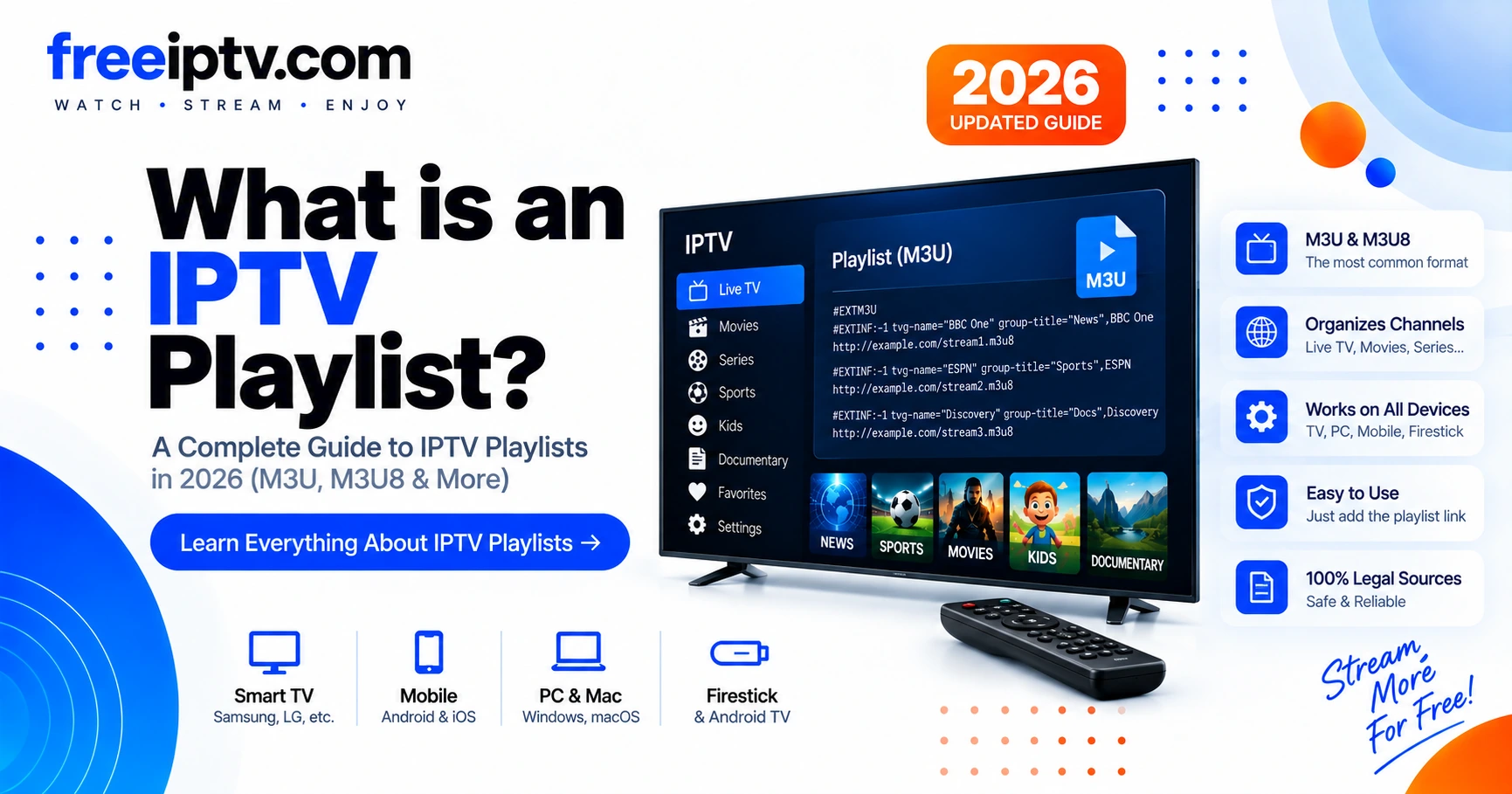
An IPTV playlist is a text file that lists TV channels and their stream URLs so an IPTV player can show a browsable channel list. Most playlists use the M3U format — a plain-text list where each channel has an #EXTINF line (name, group, logo, EPG id) followed by its https://...m3u8 stream URL. Your provider generates the playlist; your app (VLC, TiviMate, IPTV Smarters) reads it and renders the guide.
Key takeaway: Playlist = list of streams — it does not host video. The player + your internet + the provider's servers do the streaming. A valid playlist pasted into our IPTV Free Trial Checker should show ≥1 channel,
#EXTM3Uheader and few warnings.
How Does an IPTV Playlist Work?
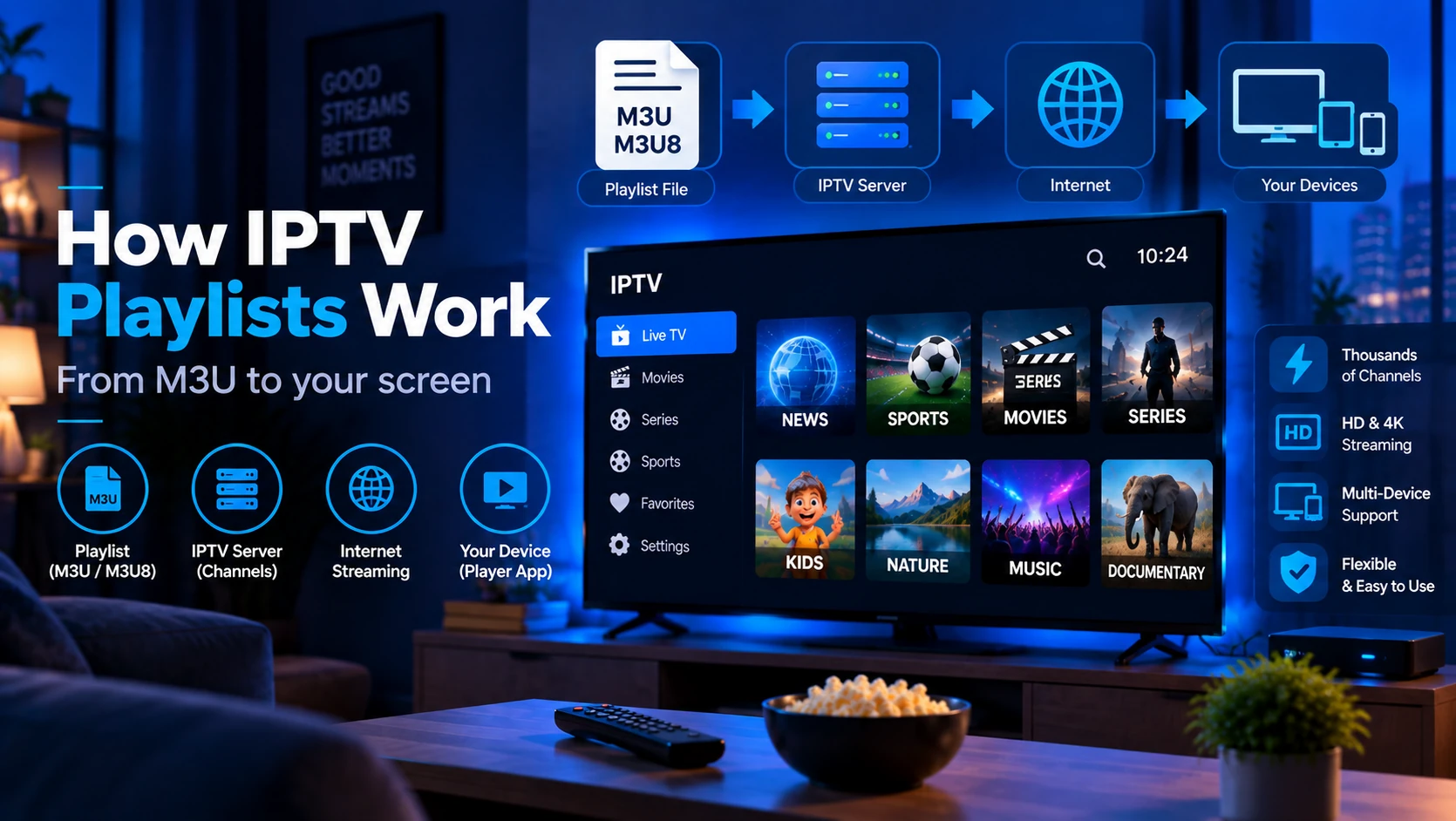
A typical setup flows like this:
Provider → M3U playlist (on a URL or file) → Internet → IPTV player → TV / phone / Firestick
- Provider maintains streams and EPG data.
- Provider publishes an M3U URL (e.g.
https://provider.example/playlist.m3u) that returns the text file — or gives you a downloadedplaylist.m3ufile. - Player fetches or imports the file, parses
#EXTINFentries, and builds categories (Sports, News…), logos and EPG mapping. - When you select a channel, the player requests that channel's
https://…/stream.m3u8HLS URL.
This is why a playlist is central to the IPTV Playlists cluster: the same file is used by many players.
IPTV Playlist vs IPTV Subscription
An IPTV playlist is not the same thing as an IPTV subscription. The subscription or service account controls whether you are allowed to access streams. The playlist is only the structured list your player uses to find those streams.
| Item | What it is | What can go wrong |
|---|---|---|
| IPTV service/account | The provider relationship, credentials, and stream access | Expired trial, disabled account, server outage, unclear rights |
| M3U playlist URL | A link that returns the channel list | Token expired, URL copied incorrectly, blocked by player |
| IPTV player | The app that reads the playlist and plays streams | Unsupported format, wrong EPG settings, device codec limits |
| EPG/XMLTV URL | A separate guide-data feed | Channel IDs do not match, timezone is wrong, stale guide data |
This difference matters when troubleshooting. If the playlist opens but every channel fails, the issue may be stream access or provider-side availability. If the player cannot even read the file, the issue is usually playlist formatting, URL entry, or app compatibility.
M3U URL vs Downloaded M3U File
Most providers give one of two playlist formats:
| Format | Best for | Tradeoff |
|---|---|---|
| M3U URL | Daily use in TiviMate, IPTV Smarters, Kodi, or VLC | Can expire or stop working if the token changes |
Downloaded .m3u file | Offline inspection or one-time import | Can become stale because it does not automatically refresh |
For a normal IPTV setup, the URL is usually better because the player can refresh channel names, groups, logos, and stream addresses. A downloaded file is useful when you want to inspect the playlist manually or test it in VLC, but it can become outdated quickly if the provider changes stream URLs.
Security note: Many playlist URLs include private tokens, usernames, passwords, or trial identifiers. Do not post your M3U URL in forums, screenshots, support chats, or public validators. Treat it like a login link.
What Does an M3U Entry Look Like?
Conceptually, one channel is two lines — metadata + URL:
#EXTM3U
#EXTINF:-1 tvg-id="bbc.one" tvg-name="BBC One" tvg-logo="https://example.com/logo.png" group-title="UK", BBC One
https://example.com/bbc-one/index.m3u8
| Field | Example | What it does |
|---|---|---|
#EXTM3U | first line | Tells the player "this is an extended M3U" |
#EXTINF:-1 | -1 | Duration flag (IPTV uses -1 = live) |
tvg-id | bbc.one | Links to EPG entry in XMLTV file |
tvg-name | BBC One | Display name |
tvg-logo | https://…/logo.png | Channel icon |
group-title | UK | Category folder |
, BBC One | after comma | Fallback display name |
| URL line | https://…/index.m3u8 | The actual HLS stream |
A playlist with hundreds of channels is just hundreds of these pairs. Use our checker to count groups, detect missing logos and duplicate URLs.
What Makes an IPTV Playlist Valid?
A playlist can be valid as a text file but still fail during playback. Separate format validity from stream availability:
| Check | Good signal | Bad signal |
|---|---|---|
| Header | File starts with #EXTM3U | First line is HTML, JSON, or an error message |
| Entries | Each channel has #EXTINF plus a stream URL | Metadata line is missing the URL below it |
| Encoding | UTF-8 for international channel names | Broken accents or unreadable characters |
| Stream scheme | Prefer https:// URLs | http:// may be blocked by some devices or networks |
| Duplicates | One channel points to one intended stream | Many channels reuse the same dead URL |
| EPG mapping | tvg-id matches the XMLTV channel ID | Guide is blank or mapped to the wrong channel |
If a playlist fails, first open the raw URL in a browser. A real playlist should begin with #EXTM3U. If you see a login page, Cloudflare page, JSON error, or "expired" message, the player is not receiving a playlist at all.
How EPG, Logos and Groups Connect
The playlist is also the bridge between your player interface and your guide data:
group-titlecreates categories such as Sports, News, Kids, or UK.tvg-logotells the player where to fetch the channel image.tvg-idconnects a channel in the playlist to a channel in the XMLTV guide.tvg-namegives the player a display name when the channel title is messy.
The most important one for guide accuracy is tvg-id. If the playlist says tvg-id="bbc.one" but the XMLTV file uses <channel id="BBC1.uk">, many players will not know those are the same channel. The result is a working stream with a blank or incorrect EPG.
When the EPG is empty, do not immediately blame the player. Check three things in order: the EPG URL loads, the timezone is correct, and the playlist tvg-id values match the XMLTV channel IDs. Our EPG guide explains that mapping in more detail.
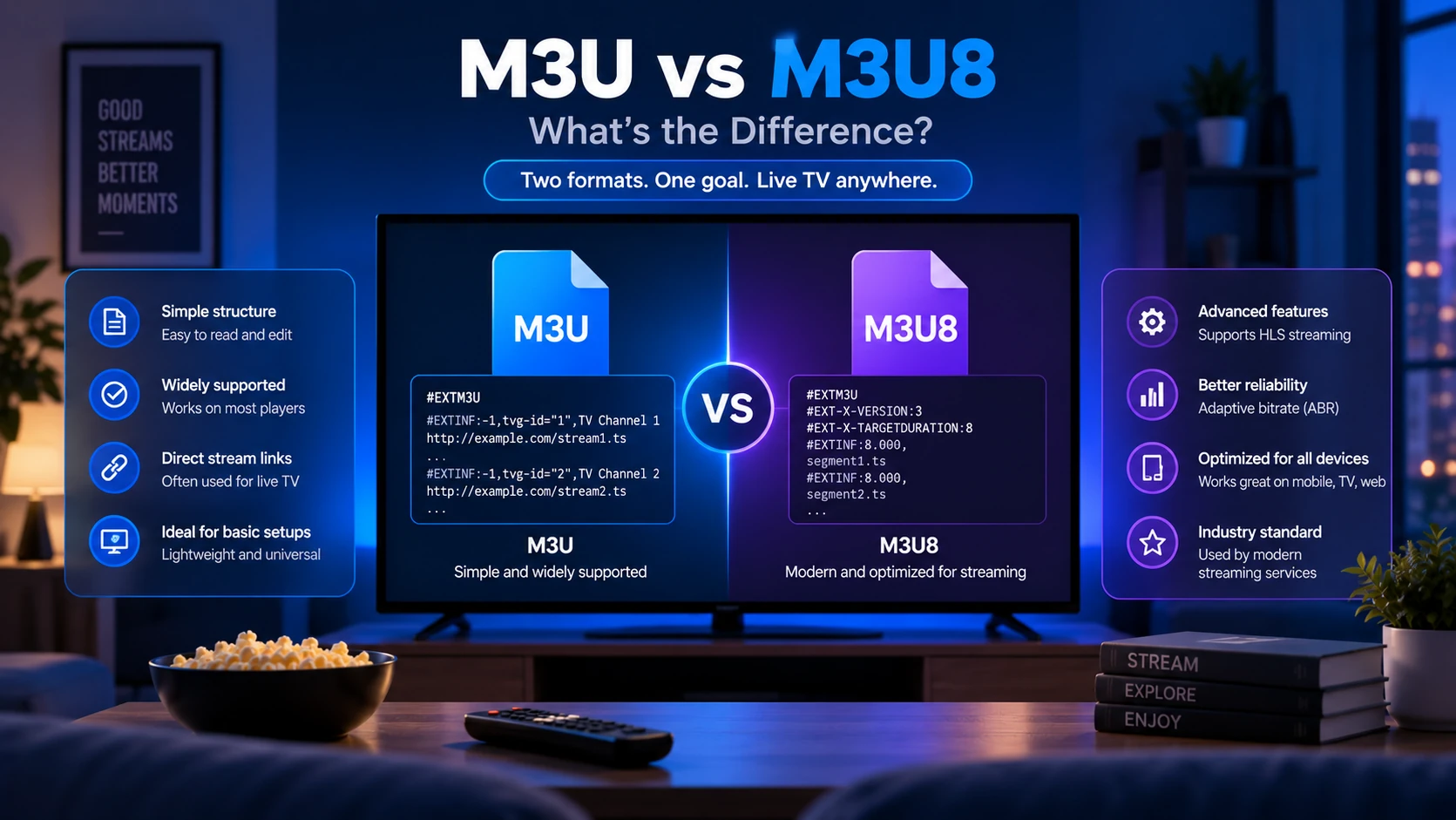
M3U vs M3U8: What's the Difference?
| M3U | M3U8 | |
|---|---|---|
| Encoding | ANSI / ISO-8859-1 | UTF-8 |
| Content | Identical #EXTINF + URL structure | Identical |
| When used | Legacy players, Windows | HLS standard (RFC 8216) — all modern players, browsers, Firestick |
| Recommendation | Works, but may garble non-ASCII names | Prefer M3U8 — supports é, 中文, emoji in channel names |
Sources: RFC 8216 — HLS; VLC documentation — M3U/playlist import.
For IPTV, M3U8 is just M3U in UTF-8 — the structure is the same. If your provider offers both, choose M3U8. Full comparison in M3U vs M3U8.
What Can a Playlist Contain Besides Channel URLs?
- Groups (
group-title) — organizes channels into News, Sports, International… - Logos (
tvg-logo) — shown in player grid. - EPG linkage (
tvg-id+ separate XMLTV URL, e.g.https://provider.example/epg.xml) — provides now/next titles. - Catch-up / VOD — some
#EXTINFincludecatchup="default"or separate VOD sections.
Is a Public M3U Playlist Safe to Use?
Public M3U playlists can be useful for learning the format, especially when they contain free-to-air streams from maintained projects. They can also be risky when they are scraped, anonymous, or advertise premium channels without clear rights.
Before using a public playlist, check:
- Source transparency — is the maintainer visible and is the repository documented?
- Rights context — does the playlist focus on free-to-air/public streams rather than premium channels?
- Update history — are dead links removed and sources maintained?
- Player behavior — does the playlist open normally, or does it redirect through suspicious shorteners?
- Privacy — never mix your private provider token into a public playlist file.
For legal free-to-air examples, start with our public IPTV playlist guide. For private provider trials, keep the playlist private and validate only the structure you need.
How to Use an IPTV Playlist
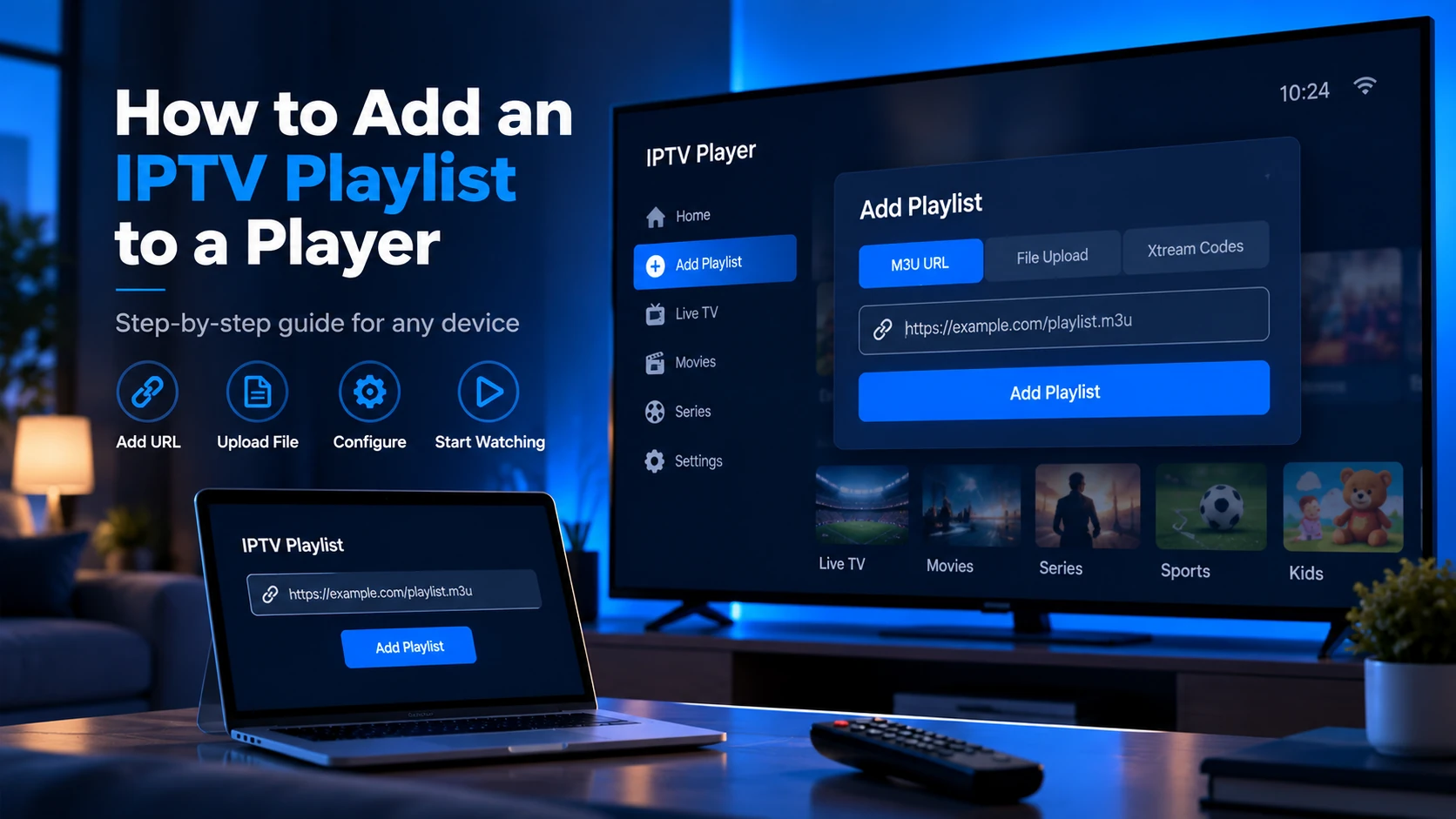
- Get the playlist — copy the M3U URL from your provider (or download the
.m3ufile). Never share it publicly — it contains your access token. - Open your player — e.g. VLC → Media → Open Network Stream and paste the M3U URL; or TiviMate → Add Playlist → Enter URL.
- Add EPG separately if provided — paste the XMLTV URL in the player's EPG settings.
- Validate — paste into the Free Trial Checker to see channel count, missing headers and insecure
http://streams before testing live. - Test on your real device — a playlist that works in VLC on PC may behave differently on Firestick due to codec or HLS support.
See step-by-step instructions in How to Add an IPTV Playlist to a Player and player-specific notes in IPTV Players.
Quick Manual Playlist Test
Before spending time configuring a TV app, run this quick test:
- Paste the M3U URL into a browser and confirm it returns text that starts with
#EXTM3U. - Search the file for at least one
#EXTINFline and one stream URL below it. - Open one stream in VLC or another trusted player.
- If the stream works, add the playlist to your main IPTV player.
- Add the EPG/XMLTV URL separately, then check whether now/next data appears.
This test narrows the problem. If the browser cannot fetch the playlist, the issue is the URL or provider access. If VLC plays one channel but your TV app does not, the issue is probably app settings, codec support, or device compatibility.
Common IPTV Playlist Problems
Playlist not loading
- Missing
#EXTM3Ufirst line - URL typo or expired token
- Player does not support plain M3U (needs M3U8) — try changing extension
- Provider returned an HTML error page instead of a playlist
- Playlist URL contains spaces or special characters copied incorrectly
Only audio or black screen
- Stream URL is
http://blocked on Smart TV — provider should offerhttps:// - Duplicate URLs pointing to same dead stream — checker flags this
- Device supports the playlist but not the video codec used by the stream
- The stream works on desktop but fails on Firestick because of hardware limitations
EPG not showing
- Wrong XMLTV URL or timezone
tvg-idin playlist does not match<channel id>in EPG file- Player imported the playlist but did not refresh EPG after the XMLTV URL was added
- Public playlist has channels but no reliable guide data source
Full diagnostics in IPTV Troubleshooting.
Sources and Technical References
- RFC 8216: HTTP Live Streaming — the HLS specification behind many
.m3u8streams. - VLC documentation — player-side streaming and playlist handling.
- Kodi PVR documentation — background on live TV/PVR, playlists and guide data in Kodi.
- IPTV-org repository — public free-to-air playlist project for learning how maintained M3U lists are structured.
FAQ
Is an M3U playlist the same as IPTV?
No. M3U is just the file format that lists streams; IPTV is the delivery method (video over Internet Protocol). You need both a playlist and a player + connection.
Do I need an M3U playlist for every IPTV service?
Not always. Some services use their own app with built-in login; others give you an M3U URL to use in any compatible player. Check what your provider supports.
Why does my playlist work in VLC but not on my TV?
VLC on desktop supports many formats and codecs. A Smart TV or Firestick app may be stricter about HLS format, video codec, audio codec, HTTPS support, or playlist size. If VLC works but the TV app fails, test a smaller playlist, refresh the EPG separately, and confirm the app supports your provider's format.
Can I share my M3U playlist URL?
No. A private M3U URL often contains a token, username, password, or trial identifier. Sharing it can expose your account and may cause the provider to disable the playlist.
Is an IPTV playlist legal?
The playlist format is legal. Whether a specific playlist is legal depends on whether the provider has rights to the streams it lists — see our disclaimer.
Next steps: Validate your trial playlist in the Free Trial Checker, then read How IPTV Playlists Work or M3U vs M3U8.