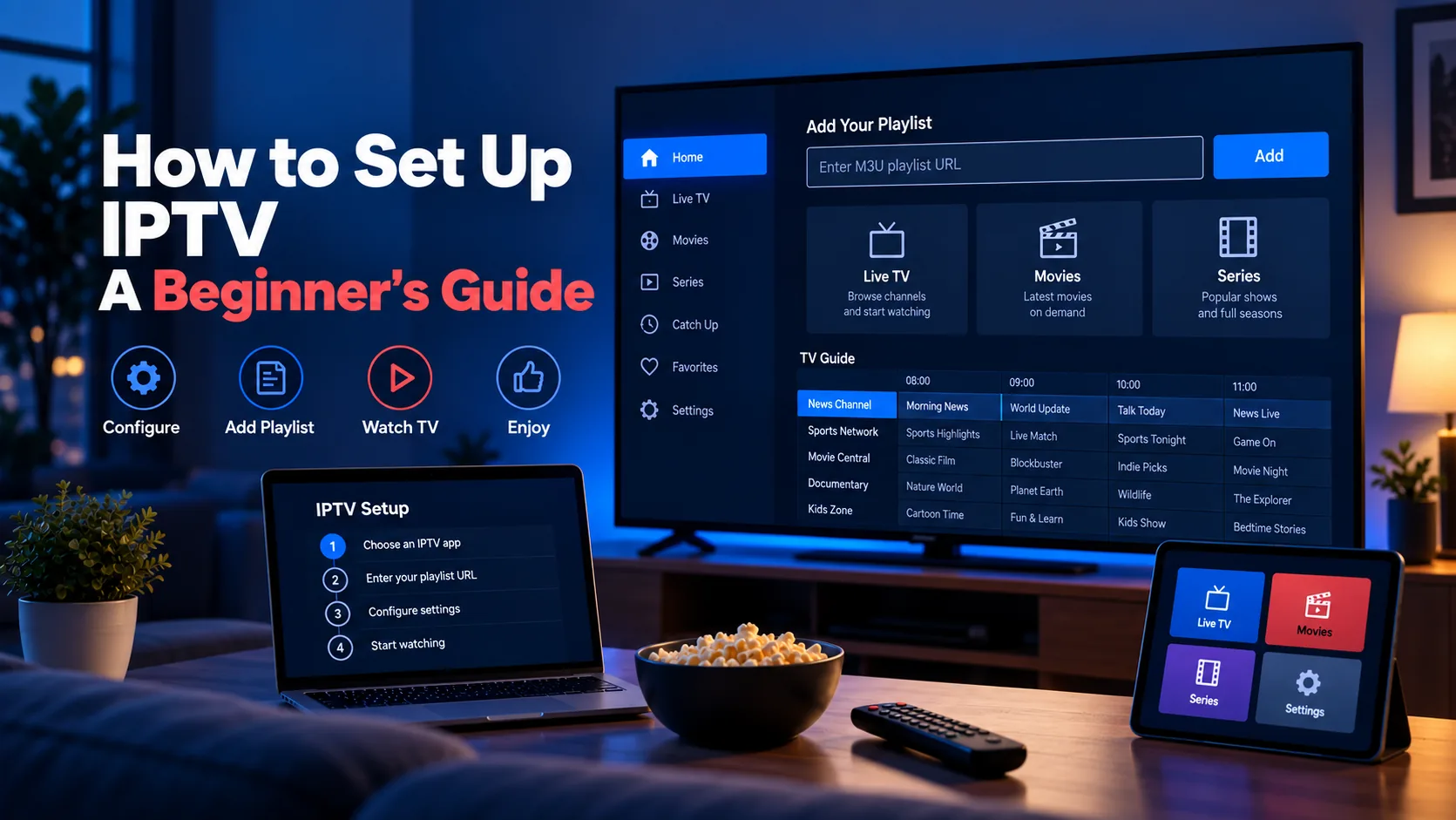
Setting up IPTV is a five-step process: pick a player, get your playlist URL, add it, add your EPG, and troubleshoot the first-run issues that appear on nearly every installation. You do not need to understand every technical detail first — the steps below get a channel list playing within ten minutes, and each step links to a deeper guide.
Quick answer: Install an IPTV app (IPTV Smarters, TiviMate, or VLC), paste your provider's M3U URL into the playlist section, add the EPG URL if you have one, and press refresh. That is 80% of setup.
What You Need Before You Start
- A device — Firestick, Android TV box, Smart TV, PC, or phone. Any of them work; the steps are the same.
- An internet connection — ideally wired for TVs; at least 25 Mbps sustained for smooth HD, as covered in our buffering guide.
- A playlist URL (M3U/M3U8) — this comes from your IPTV provider: a line that starts with
http://orhttps://and usually ends in.m3u,.m3u8, or containsget.php?type=m3u_plus. If you don't understand what it is, read What Is an IPTV Playlist? before proceeding. - An EPG URL (optional) — a separate XMLTV address from your provider for the TV guide grid. See What Is an EPG?.
If you do not have a provider yet or want to evaluate one cheaply, our IPTV Free Trial guide explains what to look for in a trial.
The Beginner Setup Map
IPTV setup feels confusing because several separate pieces are involved. Keep them separate and the process becomes much easier:
| Piece | What it does | Example |
|---|---|---|
| Provider or service | Supplies the account, streams, playlist and sometimes EPG | Trial dashboard, customer panel |
| Playlist | Lists channels and stream URLs | M3U/M3U8 URL |
| Player | Reads the playlist and plays streams | TiviMate, IPTV Smarters, VLC, Kodi |
| EPG | Adds the TV-guide grid | XMLTV URL |
| Device | Runs the player | Firestick, Android TV, Smart TV, PC |
Do not troubleshoot all five at once. First confirm the playlist loads, then confirm one stream plays, then add the EPG, then test your real device.
Step 1: Pick a Player
The player is the app that reads your playlist. Choose based on your device — see the full comparison in What Is an IPTV Player?:
| Device | Recommended player | Why |
|---|---|---|
| Firestick / Fire TV | IPTV Smarters (sideload) or TiviMate | TV-guide UX, remote-friendly |
| Android TV / Google TV | TiviMate, IPTV Smarters Pro | EPG grid, catch-up support |
| Windows / macOS | VLC (for testing), IPTV Smarters | Zero setup with VLC |
| iPhone / iPad | GSE Smart IPTV | Plays M3U on iOS |
| Samsung / LG Smart TV | Smart IPTV (SIPTV) or SS IPTV | Runs on the TV OS itself |
For a quick test without installing anything, open the M3U URL in VLC on a computer first — if it plays there, your playlist is valid and any later failure is device-side. Walkthrough: How to Use VLC with an IPTV Playlist.
Which player should a beginner choose?
If you want the simplest path:
- Use VLC first to test whether the playlist works at all.
- Use TiviMate on Android TV / Fire TV if you care about a polished TV-guide experience.
- Use IPTV Smarters / Smarters Pro if your provider gives Xtream Codes login details.
- Use Kodi if you already use Kodi and want IPTV inside its Live TV/PVR area.
The best beginner player is not always the “most powerful” one. It is the one that matches your device, accepts your provider's login format, and lets you refresh playlists and EPG without fighting the interface.
Step 2: Get Your Playlist URL
Log into your IPTV provider's dashboard (the panel you registered with). Look for "M3U URL", "Playlist", or "Download playlist". Copy the full URL — do not retype it, and do not shorten or modify it.
Two common formats:
https://provider.example/get.php?username=you&password=pass&type=m3u_plus
http://provider.example/customer/playlist.m3u8
If your provider gives you an Xtream Codes account (server, username, password) instead of a file, most modern players have an "Xtream Codes login" option — enter those three values and the app builds the playlist for you. Prefer the M3U URL wherever available; it is the most portable. Format differences are explained in M3U vs M3U8.
M3U URL, M3U file, or Xtream Codes?
| Login method | Choose it when | Avoid confusion |
|---|---|---|
| M3U URL | Your provider gives a full URL and your player has an M3U option | Paste the whole URL; do not edit the token |
| Downloaded M3U file | You want to inspect or test the playlist offline | It may go stale if stream URLs change |
| Xtream Codes | Your player asks for server URL, username and password | Do not paste an M3U URL into the Xtream login screen |
If you have both M3U and Xtream details, start with M3U for portability. If your app has a better Xtream interface with categories, VOD and EPG, use Xtream inside that app.
Treat all playlist and Xtream details like passwords. They may contain private account tokens. Do not post screenshots that reveal the full URL.
Step 3: Add the Playlist to Your Player
The mechanics vary by app but the pattern is identical:
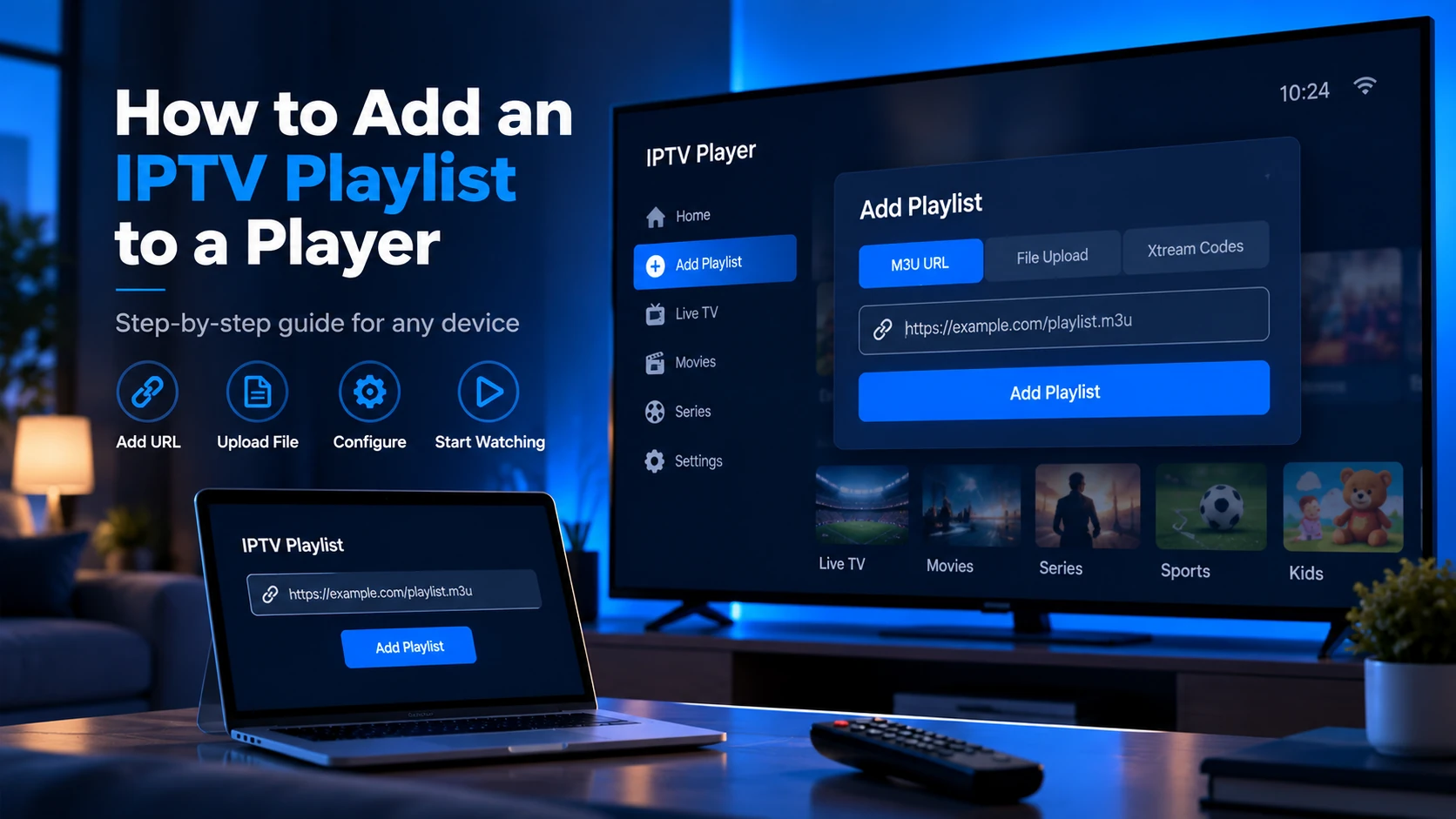
- Open the player and find "Playlists", "Add Playlist", or "+ Add" (usually a settings tab or a plus button).
- Choose M3U URL (not "Xtream Codes" if you have a plain URL).
- Paste the URL, give the playlist a name, and press Add / Save.
- The app downloads and parses the file — wait for the channel list to appear.
If you are stuck on a specific app, our step-by-step coverage lives in How to Add an IPTV Playlist to a Player.
Step 3.5: Run a First Playback Test
Before you spend time arranging favorites and guide data, test the playlist in this order:
- Open one news or free-to-air channel.
- Wait 30-60 seconds and confirm it does not freeze immediately.
- Switch to a different category, such as sports or movies.
- Test one HD channel and one SD channel.
- Restart the app and confirm the playlist still loads.
This separates a working setup from a half-working setup. A playlist that loads once but disappears after app restart may have a saved-URL problem. A playlist that loads channels but cannot play any stream is usually a provider, codec, or blocked-URL issue.
Step 4: Configure the EPG (TV Guide)
Once channels appear, the grid is still empty because the EPG is separate:
- In your player, open Settings → TV Guide / EPG.
- Add the XMLTV URL your provider gave you (often alongside the playlist in the dashboard).
- Refresh the guide. This can take a minute for large files.
Correct tvg-id matching between the playlist and EPG drives the whole grid — details and failure modes in What Is an EPG?.
If the guide is blank
A blank guide does not always mean the playlist is broken. Check:
- The XMLTV/EPG URL loads in a browser.
- The player finished refreshing the guide.
- The player timezone matches your region.
- The playlist has
tvg-idvalues. - The XMLTV file uses matching channel IDs.
If streams play but guide data is empty, focus on EPG settings. If neither streams nor guide work, go back to the playlist URL first.
Step 5: First-Run Troubleshooting
Three problems hit nearly every first setup. Checks in order:
| Symptom | Likely cause | Quick fix |
|---|---|---|
| "No channels" / empty list | Playlist URL expired, wrong, or password mistyped | Regenerate URL from the panel; copy-paste, don't retype |
| Channels load but nothing plays | http:// stream URLs blocked on device | Ask provider for HTTPS playlist; test streams in VLC |
| Channels play but no TV guide | Missing or mismatched EPG / tvg-id | Add EPG URL; match tvg-id values |
| Works on PC, fails on TV | Device codec, app, or network limitation | Test another player; use wired/Ethernet if possible |
| Works at night, buffers during sports | Server load or network congestion | Compare with another stream and test your speed |
| Login works, then expires | Trial ended or token rotated | Regenerate credentials from the provider panel |
Each of these has its own deep-dive: IPTV Playlist Not Working.
Device-Specific Setup Notes
Firestick / Fire TV
Firestick setup is usually app-focused. The main beginner issue is not the playlist itself; it is whether the player is available on Fire OS and works well with a remote. Prefer a TV-first player, keep the device storage clean, and avoid loading giant playlists if the device is older.
Android TV / Google TV
Android TV is the most flexible beginner platform because many IPTV players are built for remote-control use. TiviMate is popular for guide-heavy setups, while IPTV Smarters-style apps are common when providers give Xtream login details.
Samsung / LG Smart TV
Smart TV apps can be convenient, but they vary by model year and app-store availability. If your TV app behaves badly, testing the same playlist on VLC or Android TV helps prove whether the issue is the service or the TV app.
Windows / macOS
Desktop setup is best for testing. VLC is useful because it opens M3U/M3U8 playlists quickly and helps confirm whether a stream works before you troubleshoot a TV device.
Kodi
Kodi uses its PVR/Live TV system for IPTV. It is powerful, but beginners should follow the official PVR IPTV Simple Client path instead of installing random builds. See Kodi IPTV Setup for the dedicated walkthrough.
Legality and Provider Safety
Before you run off configuring channels: the legality of an IPTV service depends on what rights the provider holds, not on your player or the app. Treat deals that look too good to be true with the same suspicion you would give any grey-market subscription. Use the evaluation framework in the free-trial guide to check legitimacy — a provider that sells premium-channels-for-$10/year is not selling licensed content. See our disclaimer.
Use a trial period to evaluate practical and trust signals:
- Does the provider clearly explain supported devices and login formats?
- Are terms, renewal rules and cancellation rules visible?
- Does support answer setup questions without asking for unnecessary personal data?
- Do streams work at the times you actually watch TV?
- Does the EPG match the channels you care about?
- Is the service transparent about content rights and availability?
This guide explains technical setup only. It cannot verify whether a provider has rights to every stream it lists.
Sources and Technical References
- RFC 8216: HTTP Live Streaming — technical basis for many
.m3u8streams. - VLC streaming documentation — useful for testing playlist playback on desktop.
- Kodi PVR documentation — official background for Kodi Live TV/PVR setup.
FAQ
Do I need a VPN to set up IPTV?
No. A VPN is optional and only useful in specific cases (ISP throttling, geo-restriction) — it is not part of setup. Buying one first is a common beginner mistake.
What is the difference between M3U URL and Xtream Codes login?
M3U URL is a direct playlist file address. Xtream Codes is a login method (server + username + password) that the player converts into a playlist itself. Most players support both; pick whichever your provider offers.
Should I use M3U or Xtream Codes as a beginner?
Use the method your player and provider document most clearly. M3U is portable across many players. Xtream Codes can be easier inside apps that support categories, VOD and EPG through the login.
Why does my IPTV work on VLC but not on Firestick?
VLC on desktop supports many formats and codecs. Firestick apps may be stricter about video codec, HTTPS support, playlist size or hardware decoding. If VLC works, test another Fire TV player and reduce the playlist size before blaming the provider.
How do I watch IPTV on two TVs at once?
Install the same or a compatible player on each device and add your playlist to each. Whether the provider allows simultaneous streams depends on your subscription's line count — check your plan's terms.
Why does my playlist require a password?
Providers embed your credentials in the M3U URL. Treat it like a password: don't share it, and don't paste it into a hosted third-party "checker" that stores data. Our Free Trial Checker runs entirely in your browser for this reason.
Can IPTV work without an internet connection?
No. IPTV streams over the internet by definition — unlike broadcast or cable, there is no over-the-air signal. A fibre or stable cable connection below ~25 Mbps is the practical minimum.
Next steps: Now that the basics work, read How IPTV Playlists Work to understand what your player is doing, then tune performance with our buffering fix guide if playback is rough. Set-up for specific players is covered in How to Add an IPTV Playlist to a Player.