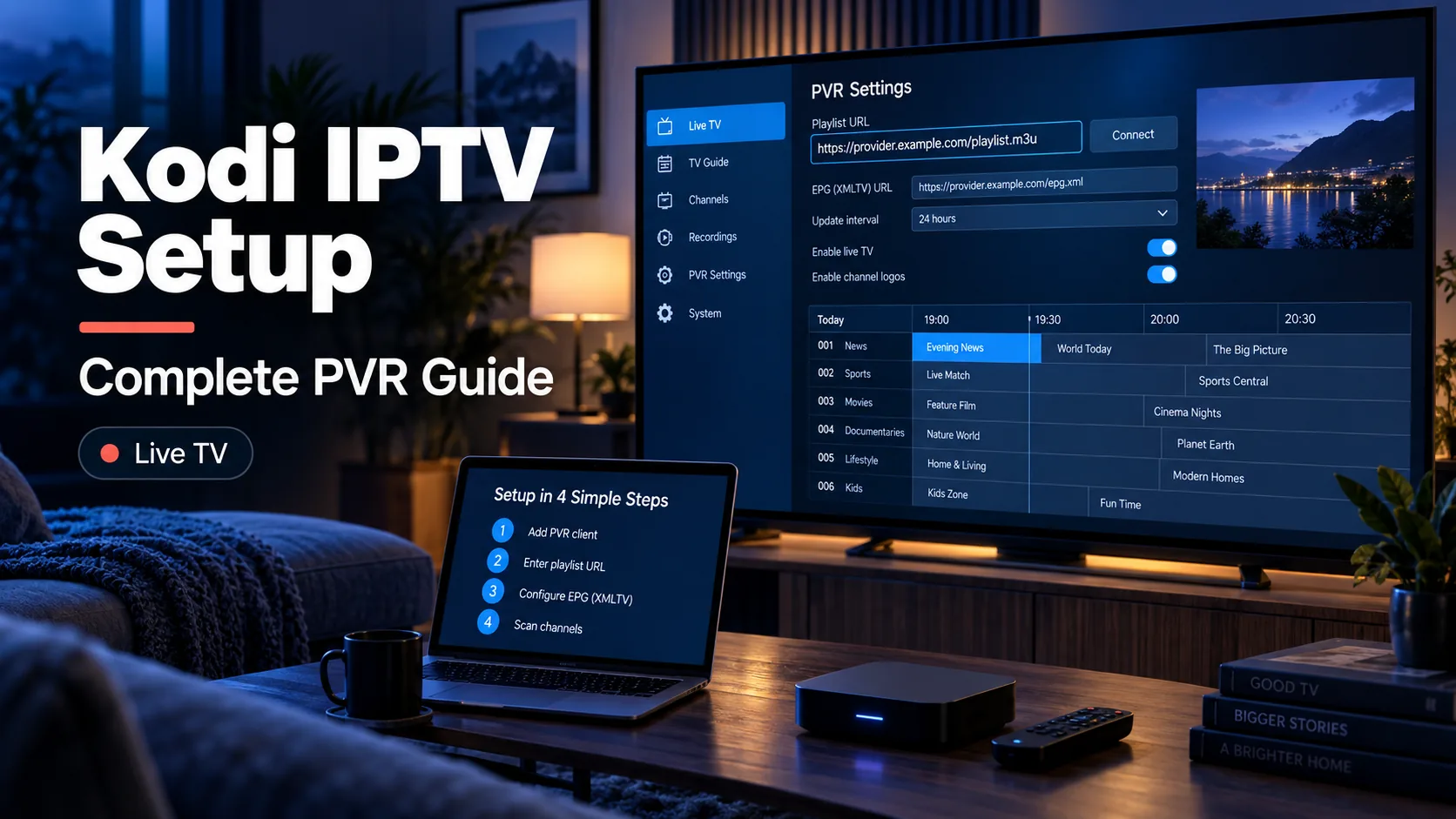
Kodi plays IPTV through a free add-on called the PVR IPTV Simple Client. You install it once, give it your provider's playlist — an .m3u URL or file — and it builds a live-TV guide with channel icons and programme listings from a second XMLTV EPG URL. No account is required, and it works on every platform Kodi supports.
Quick answer: Install the PVR IPTV Simple Client add-on from Kodi's official repository, open it, add your M3U URL in M3U Play List URL and your EPG URL in TV Guide (XMLTV) URL, restart Kodi, then open TV on the home screen. That is the entire setup in one paragraph.
What You Need
- Kodi — latest stable build (currently version 21 series), installed on any supported device: Windows, macOS, Linux, Android, Firestick, Apple TV, or Raspberry Pi.
- An M3U playlist — either a file you downloaded or, more commonly, a URL from your provider's panel that ends in
.m3uorget.php?type=m3u_plus. Not sure what this file is? Read What Is an IPTV Playlist? first. - An EPG (XMLTV) URL — a second URL that supplies programme listings. Providers usually list both next to each other. If you only have the playlist, Kodi will still work; you just get no TV guide. See What Is an EPG?.
How Kodi IPTV Works
Kodi does not become an IPTV provider. It uses a PVR client to read your playlist, then places the channels inside Kodi's Live TV interface.
| Piece | Role in Kodi |
|---|---|
| PVR IPTV Simple Client | The official add-on that imports the playlist and guide |
| M3U/M3U8 playlist | Channel list and stream URLs |
| XMLTV EPG URL | Programme guide data |
| Kodi PVR database | Local channel/guide cache created after restart |
| TV menu | Where Live TV appears after the playlist loads |
This setup is best when you already use Kodi or want IPTV alongside local media. If you only want a simple TV-first IPTV interface, a dedicated player may be easier.
Step 1: Install the PVR IPTV Simple Client
- Open Kodi and go to Add-ons (left menu).
- Select Install from repository → Kodi Add-on repository → PVR clients → PVR IPTV Simple Client.
- Click Install. The add-on downloads and enables itself automatically.
Warning: Do not install a preconfigured "build" or a "Kodi IPTV" add-on from a random website that invites you to install a zip "for full IPTV". The official repository's PVR IPTV Simple Client is all you need, and unofficial builds are a common source of provider-scraping and malware.
Official repository vs random IPTV builds
Use this rule: install the PVR client from Kodi's official add-on repository, then add your own playlist. Avoid packages that promise "free full IPTV" or ask you to install a random zip file. Those builds can be outdated, unsupported, or bundled with unknown add-ons.
The PVR IPTV Simple Client is documented by Kodi and maintained as part of the Kodi PVR ecosystem. Your provider's playlist is the part that determines what channels appear.
Step 2: Point the Client at Your Playlist
- Go to Add-ons → My add-ons → PVR clients → PVR IPTV Simple Client → Configure.
- Open the General tab. Change Location from Local directory to Remote path if your playlist is a URL.
- In M3U Play List URL, paste the full playlist URL. For a downloaded file, use Local directory and set M3U Play List Path to the file's location.
- Open the EPG Settings tab and paste your provider's XMLTV URL into TV Guide (XMLTV) URL.
- Recommended: leave Cache M3U at startup enabled — it makes channel start-up noticeably faster.
- Click OK, then exit fully. Reopen Kodi so the PVR database builds.
If your playlist loads but has no guide, the cause is almost always a missing or mismatched tvg-id — the final question in IPTV Playlist Not Working explains that mechanism.
Remote URL or local file?
| Playlist location | Use it when | Tradeoff |
|---|---|---|
| Remote path / URL | Your provider gave an M3U URL | Best for normal use because Kodi can refresh it |
| Local file | You downloaded a .m3u file | Good for testing, but can become stale |
| Local network path | You maintain your own playlist on a NAS | Flexible, but you manage updates yourself |
Most beginners should use Remote path. If you choose local file and your provider later changes stream URLs, Kodi keeps using the old file until you replace it.
Playlist URL formatting tips
Kodi is sensitive to exact URLs. Before saving:
- Copy the full M3U URL from the provider panel.
- Keep the username, password and token intact.
- Avoid line breaks when pasting on TV devices.
- If the URL contains
&, copy the provider's exact link instead of rebuilding it manually. - Test the URL in a browser or VLC if Kodi reports a PVR manager error.
Do not paste an XMLTV/EPG URL into the M3U field. It may look similar, but it is guide data, not a channel playlist.
Step 3: Watch Live TV with a Guide
After the restart, a TV entry appears on the Kodi home screen:
- TV Channels — the channel list, grouped by your provider's
group-titlevalues. - TV Guide — the 24-hour programme grid populated from your EPG URL.
- TV Recordings / Timers — appear only if your provider supports timeshift or recording via the PVR backend.
Press the up/down arrows (or a remote's channel buttons) to zap, and open the context menu (long-press / right-click) to jump straight to a category or a programme's details.
Step 3.5: Refresh Channels and Guide Data
Kodi may not show changes immediately after you edit the PVR settings. If you changed your playlist or EPG URL:
- Disable and re-enable the PVR IPTV Simple Client.
- Restart Kodi.
- Wait for the PVR manager to import channels.
- Open TV → Channels before checking the guide.
- If the guide is still empty, open the XMLTV URL in a browser to confirm it returns guide data.
Large playlists and guide files can take a few minutes on the first import. Give Kodi time before deleting the configuration.
Step 4: Fix the Common Kodi IPTV Failures
| Symptom | What to check |
|---|---|
| Channels load but won't play | HTTP vs HTTPS — Firestick/Android apps block plain http:// stream URLs. Ask your provider for an HTTPS playlist. |
| Empty TV guide | Confirm your EPG URL is a real XMLTV endpoint and that tvg-id values in the playlist match the guide data — see What Is an EPG?. |
| Buffering / stutter | Default the client's Cache M3U and buffer settings in General → Advanced; on a PC also try the Inputstream Adaptive settings (see below). |
| "PVR manager error" after restart | Your playlist URL contains a character Kodi dislikes (usually an unencoded &). URL-encode the query string: & → & or use the provider's share button to copy a clean link. |
| No TV menu after install | The PVR client only builds channels when a playlist loads successfully. Check the add-on Log (right-click → log) for the raw fetch error. |
| Channels appear in wrong groups | Provider group-title values are messy or missing; Kodi can only group what the playlist provides. |
| Logos missing | tvg-logo URLs are empty, blocked, or too slow to load. This does not usually stop playback. |
| Works on PC but not Firestick | Fire OS app version, device storage, codec support, or network quality is likely different. |
For persistent stutter, raise the bandwidth in Player → Videos → Advanced → Playback: set amount of data to buffer to Heavy, and on PC install Inputstream Adaptive (official add-on) and set its cache to a few seconds. The ordering in our IPTV buffering guide applies to Kodi too.
Device-Specific Kodi Notes
Firestick / Fire TV
Kodi works on Fire TV, but storage and memory are tighter than on a PC. Keep Kodi lean, avoid huge builds, and clear cache if the interface becomes slow. If a large playlist makes Kodi sluggish, ask your provider whether you can use a smaller bouquet/category playlist.
Android TV / Google TV
Android TV is a strong Kodi platform when you want local media and IPTV in one app. Use a remote-friendly skin and keep the official repository add-ons updated.
Windows / macOS / Linux
Desktop Kodi is easiest for troubleshooting because copy-paste, logs and browser testing are simple. If a URL works on desktop but fails on a TV device, the issue is probably device-specific rather than playlist-wide.
Raspberry Pi
Kodi on Raspberry Pi can work well, but performance depends on model, storage quality and video codec support. Use wired Ethernet where possible and avoid very large EPG files on older hardware.
Kodi vs IPTV Smarters vs TiviMate
| Player | Best for | Not ideal when |
|---|---|---|
| Kodi + PVR IPTV Simple Client | Users who already use Kodi for media and want Live TV inside Kodi | You want the simplest IPTV-only interface |
| IPTV Smarters | Provider gives Xtream Codes and you want Live TV/VOD/series split clearly | You dislike provider-branded app ecosystems |
| TiviMate | Android TV users who want a polished guide-heavy TV experience | You need iOS/desktop support |
Kodi is powerful, but it is not always the easiest IPTV app. If your only goal is live IPTV on an Android TV remote, compare it with IPTV Smarters and IPTV players before committing.
Is This Setup Permanent?
Kodi is a generalist — it plays IPTV and local media, and its live-TV ergonomics are behind purpose-built apps. If Kodi already runs on your device, this is the fastest zero-download setup. If you are installing something specifically for IPTV, a dedicated player such as TiviMate (Android TV) or IPTV Smarters gives you a better remote-driven experience — see What Is an IPTV Player? for how they differ.
Sources and Technical References
- Kodi wiki: PVR — official Kodi background for Live TV/PVR behavior.
- Kodi wiki: IPTV Simple Client — official add-on documentation.
- PVR IPTV Simple Client repository — source project for the Kodi PVR client.
- RFC 8216: HTTP Live Streaming — technical reference for many
.m3u8streams.
FAQ
Is an IPTV add-on for Kodi legal?
The PVR IPTV Simple Client is FOSS legal software from the official Kodi repository. Whether the streams loaded through it are legal depends solely on your provider's rights. See our disclaimer.
Can Kodi use a premium/paid IPTV account?
Yes — same mechanism as any playlist. Paste the M3U URL (or Xtream Codes via the newer "PVR IPTV Simple Client" Xtream login fields where supported). Dedicated Xtream portal clients are covered in our IPTV Smarters setup guide.
Does Kodi support Xtream Codes directly?
Kodi's common IPTV setup is playlist-based through the PVR IPTV Simple Client. Some versions or add-ons may expose Xtream-style fields, but the most portable method is still to use the M3U URL your provider generates from those credentials.
Do I need the IPTV Simple Client if I just want to test one channel?
No. Kodi plays a raw .m3u8 stream directly via Media → Files → Add videos or by opening the stream URL in the player. The PVR client is only for turning a playlist into a channel guide.
Why did my guide work yesterday but is empty today?
EPG failures are usually the provider's registration expiring or the XMLTV URL changing. Reload the add-on (right-click → reload) and, if it persists, fetch the XMLTV URL in a browser — if it returns an error page, contact the provider with the IPTV Playlist Not Working checklist.
Why does Kodi show channels but no logos?
Logos come from tvg-logo URLs in the playlist. If those URLs are missing, blocked, or slow, Kodi may still play the channel while showing no icon.
Next steps: If your provider handed you an Xtream Codes login instead of an M3U URL, use the IPTV Smarters Pro setup guide. To understand which player suites which device, read What Is an IPTV Player?. And if any part of your playlist isn't behaving, start at How to Add an IPTV Playlist to a Player and the Free Trial Checker to validate the file itself.