To set up IPTV on a Fire TV Stick you need three things: a playlist or login from a provider, a player app that accepts it, and permission to install that app. Amazon's store does not carry the most popular IPTV players, so the install step is usually a sideload — and that one step is where most setups fail.
Quick answer: Install the Downloader app, allow it to install unknown apps, use it to fetch the player's official APK, then enter your M3U URL or Xtream login in the player. Budget ten minutes.
First: Does Your Fire Stick Allow Sideloading?
This is the step most guides still get wrong. As of late 2026 the Fire TV range is split by operating system, and the split decides whether the rest of this guide applies to you.
| Device | OS | Sideloading |
|---|---|---|
| Fire TV Stick 4K Plus | Fire OS (Android) | Yes |
| Fire TV Stick 4K Max | Fire OS (Android) | Yes |
| Fire TV Cube (3rd gen) | Fire OS (Android) | Yes |
| Fire TV Stick HD (1st gen / older stock) | Fire OS (Android) | Yes |
| Smart TVs with Fire TV built in | Fire OS (Android) | Yes |
| Fire TV Stick 4K Select | Vega OS | No |
| Fire TV Stick 4K (3rd gen) | Vega OS | No |
| Fire TV Stick HD (2nd gen, 2026) | Vega OS | No |
Model generations change quickly, so confirm yours before buying or troubleshooting: if the device runs Vega OS, no setting, firmware update or workaround enables APK installs.
If you are on a Vega OS device, skip Steps 3 and 4. You cannot install a player from outside the Amazon Appstore. Your realistic options are an Appstore player that supports your login type, or a different streaming device — an Android TV box or Google TV streamer restores the sideloading path.
If you are on Fire OS, the steps below work as written.
Separately, Amazon has been blocking apps it identifies as piracy-related even when they were sideloaded, a policy announced in November 2025. That does not prevent installing an ordinary media player, but it does mean a device can refuse an app the platform flags.
What You Need Before You Start
| Item | What to check |
|---|---|
| Fire TV Stick | Any model works; 4K and 4K Max decode HLS more smoothly than older sticks |
| Provider details | An M3U playlist URL, or a server URL + username + password for Xtream login |
| Player app | TiviMate, IPTV Smarters Pro, or another player that supports your login type |
| Network | 5 GHz Wi-Fi or Ethernet; live HD needs roughly 25 Mbps sustained |
| Storage | At least a few hundred MB free for the app and its cache |
If you do not have provider details yet, read how to choose an IPTV service first. Installing a player before you know whether your service uses M3U or Xtream wastes the most time.
Step 1 — Prepare the Fire Stick
- Update Fire OS. Settings → My Fire TV → About → Check for Updates.
- Free up space. Settings → Applications → Manage Installed Applications. Uninstall anything you do not use; a full stick stutters and players cannot write their stream cache.
- Join the right Wi-Fi. Prefer 5 GHz. If the stick sits behind a TV, a short HDMI extension helps both Wi-Fi and heat.
- Set the correct display resolution. Settings → Display & Sounds → Display → Video Resolution. Let the stick match your TV instead of forcing a higher mode the panel cannot show.
Step 2 — Choose a Player That Fits Your Login Type
Not every player supports every login. This is the decision that saves the most time.
| Player | M3U URL | Xtream login | EPG | Notes |
|---|---|---|---|---|
| TiviMate | Yes | Yes | Yes | Best living-room guide; premium features are paid |
| IPTV Smarters Pro | Yes | Yes | Yes | Free, familiar layout, Xtream-first |
| VLC | Yes | No | Limited | Useful for testing a URL, not for daily TV |
| Downloader | n/a | n/a | n/a | Only for fetching APKs — not a player |
If you are unsure which login your provider gives you, the difference is simple: an M3U is a single long URL, while Xtream is a server address plus a username and password. Our Xtream Codes explainer covers that in detail.
Step 3 — Allow Installing Apps (Fire OS only)
This is the step people miss. Fire OS blocks installs from anywhere except the Amazon Appstore until you allow them.
- Go to Settings → My Fire TV → About.
- Highlight the device name (for example "Fire TV Stick 4K") and press the select button seven times. A message confirms developer options are enabled.
- Go back to Settings → My Fire TV → Developer Options.
- Turn on Install unknown apps for the app you will use to install — usually Downloader.
On newer Fire OS versions the permission lives per app rather than as one global switch. If you see a list of apps instead of a single toggle, that is expected: enable it for Downloader only.
Step 4 — Install the Player
- Open the Amazon Appstore on the Fire Stick and install Downloader (by AFTVnews).
- Open Downloader and accept its storage prompt.
- Enter the official website of your chosen player and download its Android APK.
- When the download finishes, Downloader offers to install it. Confirm.
- Open the player once so Android registers it, then return to the home screen.
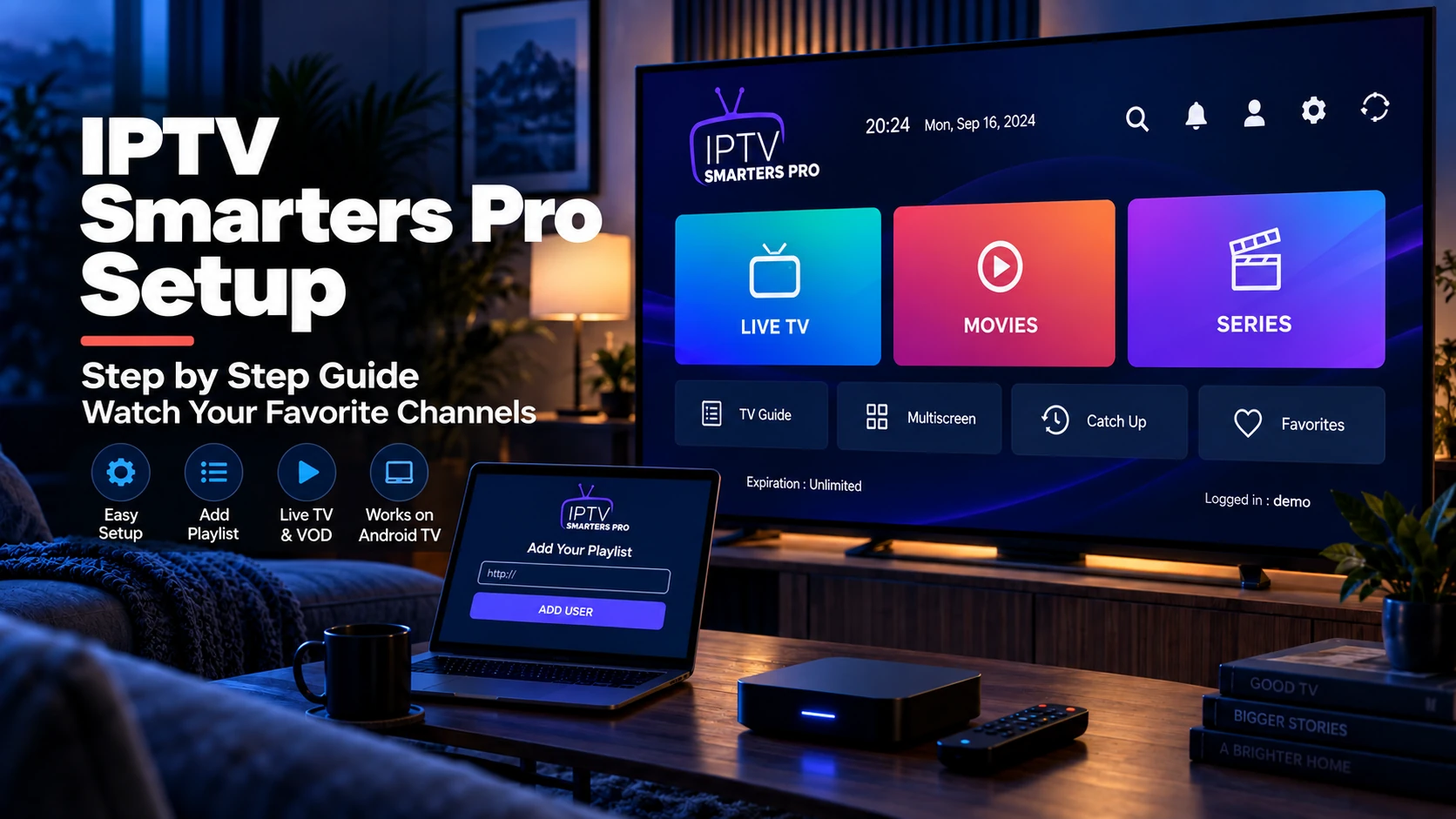
Two safety rules matter here. First, get the APK from the developer's own site — not from a "free IPTV APK" mirror, which is a common malware vector. Second, if a download page asks you to install a second "helper" app, close it. Our IPTV Smarters Pro setup guide covers that player specifically.
Step 5 — Load Your Playlist or Login
If you have an M3U URL
- Open the player and choose Add playlist → M3U playlist.
- Paste the full URL, including
http://orhttps://and any port number. - Give it a name you will recognise later.
- Save and wait for the channel list to import. Large lists can take a minute.
If you have an Xtream login
- Choose Add playlist → Xtream Codes API.
- Enter the server URL exactly as the provider wrote it, for example
http://server.example.com:8080. - Enter the username and password.
- Save. The player requests categories and streams from the server.
If the list imports but channels will not play, the problem is upstream or network — not the Fire Stick. Run through IPTV Not Working before reinstalling anything.
Step 6 — Add the EPG
An EPG turns a channel list into something that behaves like television. Most providers supply an XMLTV URL.
- In the player, open the playlist settings → EPG.
- Paste the XMLTV URL from your provider, or use the one bundled with your Xtream login.
- Set the correct timezone offset if the guide is shifted by hours.
- Refresh the guide and confirm programme names appear.
If the guide loads but shows the wrong programmes, see what an EPG is and how it works.
Step 7 — Tune Playback
- Match frame rate. TiviMate and some other players can switch refresh rate to match content; this removes judder on live sport.
- Pick the decoder. If one decoder stutters, switch between hardware and software decoding to see which fits your stick.
- Cap the resolution. A 4K stream on a marginal connection will buffer constantly. Most players let you prefer a lower tier.
- Use Ethernet. A USB Ethernet adapter with the official power supply is more stable than Wi-Fi on every Fire Stick model.
Fire Stick IPTV Problems and Fixes
| Symptom | Likely cause | Fix |
|---|---|---|
| "App not installed" | Unknown sources not allowed for Downloader | Re-enable in Developer Options, then retry |
| Downloader cannot download | Typed URL or blocked network | Check the URL, try another network |
| Playlist imports, no channels | Expired login or wrong URL | Recheck credentials; test the M3U in VLC |
| Everything buffers | Wi-Fi or provider congestion | Ethernet, then test at an off-peak hour |
| App closes on launch | Low storage or outdated Fire OS | Free space, update, reinstall |
| Works for days, then stops | Cache or memory exhaustion | Force stop, clear cache, reboot the stick |
| Audio but no picture | Codec or display mode mismatch | Change decoder, check video resolution |
| Only the guide is empty | EPG URL or timezone | Re-enter XMLTV URL, fix offset |
For a deeper cause-by-cause walkthrough, use IPTV Buffering: Causes and Fixes.
What Not to Bother With on a Fire Stick
A short list of things that cost time and change nothing:
- "IPTV optimizer" and "speed booster" apps. They clear caches you can clear yourself and often ship ads. Fire OS has no tunable network stack worth buying.
- Clearing the cache every day. Clear it when something breaks, not as a ritual.
- Forcing 4K on a 1080p stick or TV. The stream still has to be decoded; you get buffering, not detail.
- Unpowered USB hubs. The stick needs its own power supply plus the Ethernet adapter's draw. Underpowered hubs cause random reboots that look like app crashes.
- "Fully loaded" sticks from marketplaces. You cannot verify what was installed, the licence position is unclear, and updates often break the setup.
- Unknown APK mirrors. The APK is the one file you install with elevated trust. Get it from the developer.
Is IPTV on a Fire Stick Legal?
The Fire Stick is legal hardware and IPTV is a legal technology. What matters is whether the service you load has the rights to distribute the channels it offers. Amazon removes apps that facilitate unlicensed streaming, and it does not police what you sideload.
Before subscribing, check that the provider names the company behind it, explains its content rights, publishes clear pricing and cancellation terms, and does not rely on "lifetime" pricing or crypto-only payment. Our free trial checklist turns that into a ten-point test you can run before paying.
FAQ
Is Amazon blocking IPTV on Fire Stick?
Not as a category. Amazon blocks apps it identifies as piracy-related, including sideloaded ones, and its newest Vega OS devices block all APK sideloading. Fire OS devices still install ordinary media players. If a player will not install, check the device's OS before assuming a policy change.
Can I install IPTV on a Fire Stick without a computer?
Yes. The Downloader app handles the whole install on the stick. A computer is only useful for finding the official APK link and sending yourself the M3U URL.
Which Fire Stick model is best for IPTV?
The Fire TV Stick 4K and 4K Max have the smoothest decoding and the best Wi-Fi. The Lite model works for 1080p but has less headroom for large playlists and heavy apps.
Why does my IPTV keep stopping on Fire Stick?
Usually storage pressure or app memory, not the stream. Force stop the player, clear its cache, and reboot the stick weekly. If channels fail at the same time each evening, suspect provider congestion instead.
Do I need a VPN for IPTV on Fire Stick?
Only if your ISP throttles streaming or your provider geo-restricts content. A VPN adds overhead and can make buffering worse when the cause is local. Test before paying for one.
Can I use the same login on two Fire Sticks?
That depends on your provider's connection limit, not the device. Many plans allow one active stream. Check the terms before adding a second stick, or streams will start disconnecting each other.
Where to Go Next
- IPTV Not Working? A 10-step diagnosis — when the install is fine but playback is not
- What Is an IPTV Playlist? — understand the file you just pasted
- IPTV Players — compare players before committing to one
- IPTV Free Trial Checker — validate a trial playlist in your browser