TiviMate installs from the Google Play Store on Android TV and Google TV, and by sideloading on Fire TV — it has never been in the Amazon Appstore. Once installed, the setup is the same everywhere: add an M3U URL or an Xtream login, attach guide data, and organise the channels you actually watch. Ten minutes for the install, five for the playlist.
Quick answer: On Android TV/Google TV, install TiviMate IPTV Player from the Play Store. On Fire TV, install Downloader, allow it to install apps, and fetch the APK from tivimate.com. Then choose Add playlist → M3U or → Xtream Codes, and set the EPG.
What TiviMate Is — and What It Is Not
TiviMate is a media player. It contains no channels, no subscription and no content. It renders the playlist you already have from a provider, and its reputation comes from one thing: its guide behaves like a cable TV guide and is usable with a remote.
Two consequences follow, and they explain most setup confusion:
- A TiviMate problem is usually a playlist problem. If channels do not appear, the player is telling you the login is wrong, not that it is broken.
- It cannot fix a weak connection or a dead source. If everything buffers, read IPTV buffering causes rather than reinstalling.
The free tier allows one playlist. Premium adds multiple playlists, catch-up, recording, multiview, parental controls, deeper guide customisation and backup. Whether that is worth paying for is covered in our TiviMate Premium review — the short version is that daily Android TV viewers get their money's worth and casual users do not.
Which Devices Can Run TiviMate
| Device | Install method | Works? |
|---|---|---|
| Google TV / Android TV (Sony, TCL, Hisense, Chromecast with Google TV, Nvidia Shield) | Play Store | Yes — easiest path |
| Fire TV Stick 4K / 4K Max / Cube on Fire OS | Sideload via Downloader | Yes |
| Fire TV devices on Vega OS (4K Select, newer 4K, 2nd-gen HD) | — | No — APK installs are blocked entirely |
| Samsung Tizen, LG webOS | — | No native build |
| iPhone, iPad, Mac, Windows | — | No build |
| Amazon Appstore | — | Not listed; there is no store version |
Step 1 — Install on Android TV or Google TV
This is the straightforward path, because the app is on Google Play.
- On the TV, open the Play Store.
- Search for TiviMate IPTV Player and check the developer matches the listing at tivimate.com.
- Install and open it.
- Accept the storage permission when prompted — without it the player cannot cache the guide.
If the Play Store says the app is not compatible with your device, you are almost certainly on a TV whose firmware is older than the app requires. Update the TV firmware before trying anything else.
Step 2 — Install on a Fire TV Stick (Sideload)
Fire OS blocks installs from anywhere except the Amazon Appstore until you allow it for a specific app.
- Enable developer options. Settings → My Fire TV → About → highlight the device name → press select seven times.
- Allow installs for the installer. Settings → My Fire TV → Developer Options → Install unknown apps → enable it for Downloader only.
- Install Downloader from the Amazon Appstore (by AFTVnews).
- Open Downloader, accept the storage prompt, and enter
tivimate.com. - Download the Android APK from the official site, then confirm the install when Downloader offers it.
- Open TiviMate once so Fire OS registers the app, then return home.
If the install fails with App not installed, the cause is nearly always the permission in step 2 being off for the app you are installing from, or not enough free storage. Both are covered in the troubleshooting table below.
Step 3 — Add Your Playlist
TiviMate accepts two login styles, and which one you have decides the whole flow.
| Your provider gave you | Choose in TiviMate | What to enter |
|---|---|---|
One long URL ending in .m3u or .m3u8 | M3U playlist | The full URL, including http:// or https:// and the port |
| A server address + username + password | Xtream Codes API | Server URL, username, password |
- Open TiviMate → Add playlist.
- Pick M3U playlist or Xtream Codes API.
- Paste the details. Pasting matters: one wrong character produces the same failure as a dead server.
- Name it something you will recognise when you add a second one.
- Save and let it import. Large lists take a minute or two.
If you are not sure which login type you were given, our Xtream Codes explainer covers the credential anatomy, including how to convert an Xtream login into an M3U URL if you would rather use that route.
Step 4 — Load Guide Data (EPG)
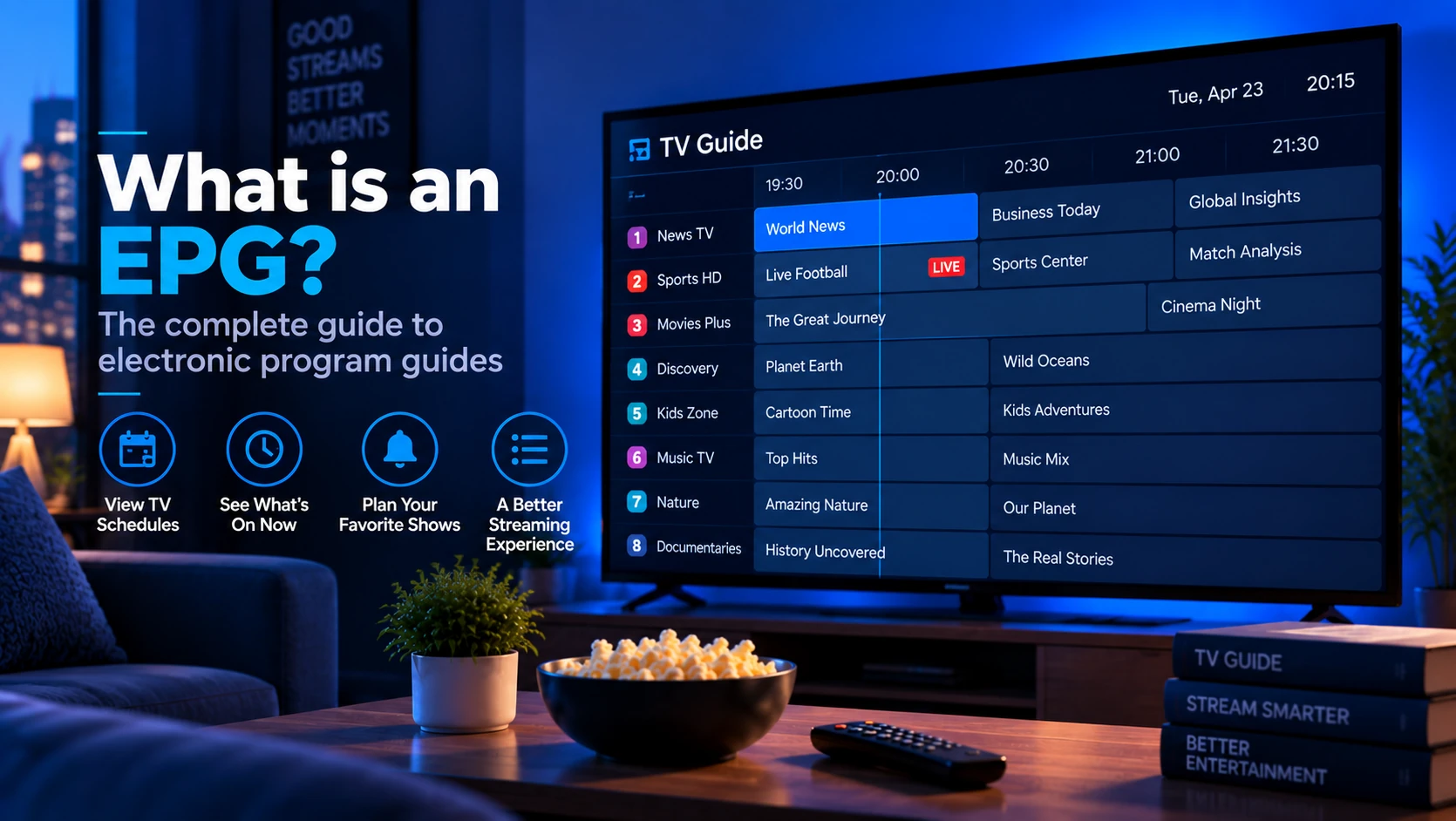
Without an EPG, TiviMate is a channel list. With one, it is a television guide.
- If you used Xtream, guide data usually arrives automatically — the server advertises its XMLTV endpoint.
- If you used M3U, you must add the XMLTV URL separately: playlist settings → EPG → add source → paste the URL.
Then check three things:
- Programme names appear for a channel you recognise.
- Times are correct. A guide shifted by whole hours is a timezone offset, not bad data.
- Set a refresh interval. Auto-update every few hours keeps now/next accurate; a stale guide is the most common "the guide is broken" report.
If channel names show but programme data does not, the playlist's tvg-id values do not match the guide's channel IDs. That is a provider-side mismatch — see what an EPG is for how the two files are supposed to line up.
Step 5 — Make the Guide Usable
This step is why people choose TiviMate, and most guides skip it.
- Hide what you never watch. Channel groups can be disabled individually; removing shopping and adult categories shortens the list dramatically.
- Create favourites. Pin the handful of channels you actually use so the guide opens on them rather than on channel 4,000.
- Reorder groups. Put sport and news where your thumb expects them.
- Set the guide's default view to your favourites, not "all channels".
A playlist with 8,000 entries becomes pleasant once 40 of them are favourites.
Step 6 — Activate Premium (Fire TV Specifics)
Free TiviMate works indefinitely with one playlist. Premium is a separate purchase, and on a Fire Stick the purchase flow is not the usual one — Fire OS has no Google Play billing.
- Install TiviMate Companion on an Android phone or tablet from Google Play.
- Sign in with the same account you use on the player.
- Purchase or activate Premium there. The Companion app exists precisely to unlock Premium on devices that cannot buy it in-app.
- On the Fire Stick, sign in to the player with that account and let it pick up the entitlement.
Companion also lists your activated devices, which is how you free up a slot when you replace a stick. If Premium features stay locked after signing in, force-stop the player and reopen it before assuming the purchase failed.
TiviMate Problems and Fixes
| Symptom | Likely cause | Fix |
|---|---|---|
| Not found in the Amazon Appstore | It is not published there | Sideload from tivimate.com |
| "App not installed" | Unknown-source permission off, or low storage | Enable for Downloader; free up space |
| Installs, closes immediately | Wrong CPU build or outdated Fire OS | Re-download the correct build; update Fire OS |
| Playlist will not import | Bad URL, expired login, or server down | Test the URL in a browser |
| Channels appear, nothing plays | Upstream stream or network | Try one channel in VLC; see IPTV Not Working |
| Guide is empty | No XMLTV source, or tvg-id mismatch | Add the source; check IDs |
| Guide shows wrong times | Timezone offset | Set the offset in EPG settings |
| Stutters on live sport | Frame-rate mismatch or decoder | Enable auto frame rate; switch decoder |
| Premium locked after purchase | Entitlement not synced | Force-stop and reopen; confirm same account |
| App forgets everything after a reboot | Cache cleared or storage full | Free space, then restore from backup |
The Two Questions Everyone Asks
Is TiviMate still available on Firestick? Yes — on Fire OS devices, through sideloading. It was never in the Amazon Appstore, so nothing was removed from a store you could have used. On the newer Vega OS devices the install path does not exist at all.
Is Amazon blocking it? Amazon has been removing apps it identifies as piracy-related, including sideloaded ones, under a policy announced in November 2025. TiviMate is an ordinary media player with no content of its own, but enforcement can catch players that ship with preloaded sources. The practical rule: install the official build, and if a device refuses it, do not assume a workaround exists.
FAQ
Is TiviMate free?
Yes, with limits. The free version supports one playlist and a working guide. Premium is a paid unlock that adds multiple playlists, catch-up, recording, multiview, parental controls and backup. You do not need Premium to test whether your playlist works.
Do I need a separate IPTV subscription?
Yes. TiviMate is only a player — it ships with no channels. You need a playlist or Xtream login from a service. If you are still deciding, start with how to evaluate IPTV services rather than installing players at random.
Can I install TiviMate on a Samsung or LG smart TV?
No. TiviMate is an Android TV application with no Tizen or webOS build. On those TVs you either use a different player that exists in that platform's store, or plug in a streaming stick — see IPTV on a smart TV for why the stick is usually the better answer.
How do I activate TiviMate Premium on a Fire Stick?
Buy it through TiviMate Companion on an Android phone, then sign in to the player on the Fire Stick with the same account. Fire OS has no Play Store billing, so the in-app purchase route that works on Google TV is not available there.
Why does TiviMate show channels but no programme names?
The playlist imported but the guide data did not. Add the XMLTV URL manually, refresh, and check the timezone. If times are correct but names are missing, the playlist's tvg-id values do not match the guide file — a provider issue.
Sources and Further Reading
- TiviMate official site — current Android builds and release notes.
- TiviMate IPTV Player on Google Play — the official listing used for Android TV and Google TV installs.
- TiviMate Companion on Google Play — the activation app for devices without Google Play billing.
- Android: install apps from unknown sources — why the sideload permission exists and what it grants.